How to Delete Multiple Emails in Gmail
Updated 5 min read
Table of contents
Many Gmail inboxes are crammed full of old emails that aren’t needed anymore. There’s a lot of space on a Google account—15 GB to be precise! But that doesn’t mean you don’t want to get rid of the clutter.
Deleting them one by one is tedious and time-consuming However, if you knew how to delete multiple pages of emails in Gmail at one go, then it wouldn’t be so. Luckily, there are a couple of tricks that you can use to delete multiple emails on Gmail at once.
In this tutorial, we'll show you how to delete multiple emails in Gmail the simple way, and we’ll talk about how to use filters to get rid of even more emails quicker.
How to Delete Multiple Emails on Gmail by Individually Selecting Them
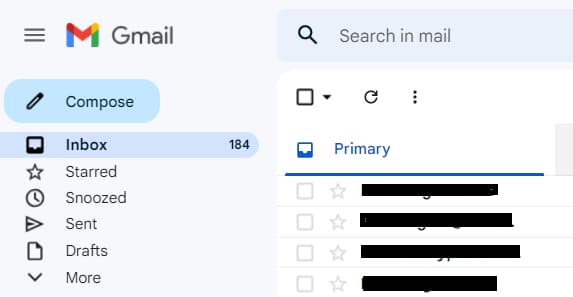
Step 1: Go to your inbox
First, open your Gmail and login if necessary. This should take you to your inbox.
Step 2: Select emails you want to delete
Now, it’s time to delete some emails in Gmail.
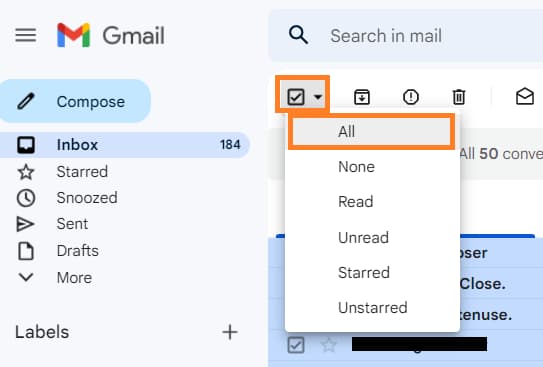
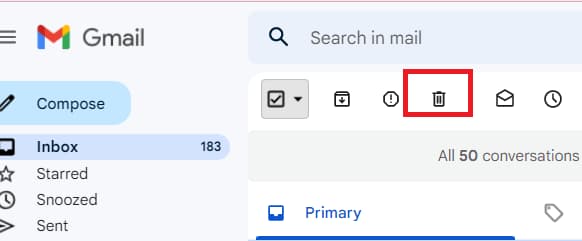
You can select emails one at a time by clicking the checkbox next to each email, but this will take forever if you have a lot of messages. A quicker method is to click the drop-down box at the top of the checkboxes and select “All.” This will select every email on the current page of your inbox (a maximum of 50 emails).
Step 3: Click the “Trash” icon to Delete Multiple Emails in Gmail
Once you've selected the emails you want to delete, click the Trash icon (it looks like a garbage can) at the top of the page. All of the selected messages will be moved to your Gmail's trash folder. You now know how to clear your Gmail inbox. However, the task of deleting multiple emails in Gmail isn’t yet complete because the emails still count towards your total storage limit.
Step 4: Empty your Trash
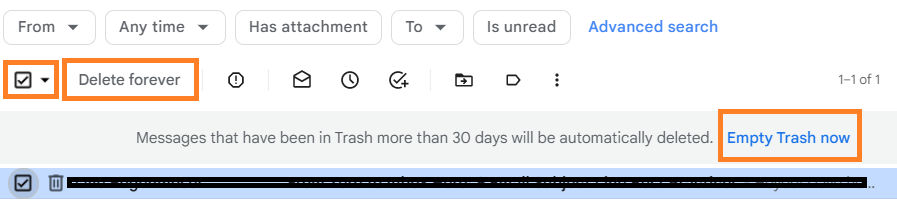
Your deleted messages aren't gone until you empty your Trash folder. Deleted messages stay in your Trash for 30 days, so if you change your mind, you can still recover them. After 30 days, they are permanently deleted and can't be recovered.
If you want to delete all your emails in the Gmail Trash folder, you can simply click on the ''Empty trash now'' option at the top of your Trash folder.
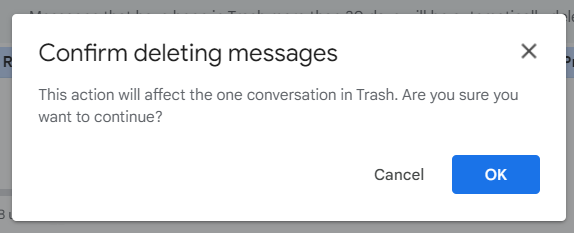
You will be asked to confirm this action, and once you click ''OK'', all messages in your Trash folder will be permanently deleted.
Keep in mind that once you delete messages from your Trash folder, they cannot be recovered, so make sure that you only delete messages that you no longer need before emptying your Trash folder.
You've just learned how to remove multiple emails from Gmail by selecting them individually! This should save you a lot of time if you're dealing with a cluttered inbox. But if you’re suffering from an inbox of thousands of messages, 50 emails at a time is going to take a while. Want to know how to delete multiple emails at once in Gmail? Use filters!
Is There a Way to Delete Multiple Emails in Gmail at Once?
Step 1: Type a filter in the search bar
The quickest way to delete a lot of emails at once is to use Gmail's search function to find all the messages you want to get rid of.
Start by typing "is:unread" in the search bar. This will show you all the unread messages in your inbox. These messages are usually promotional emails or newsletters that you don't need anymore.
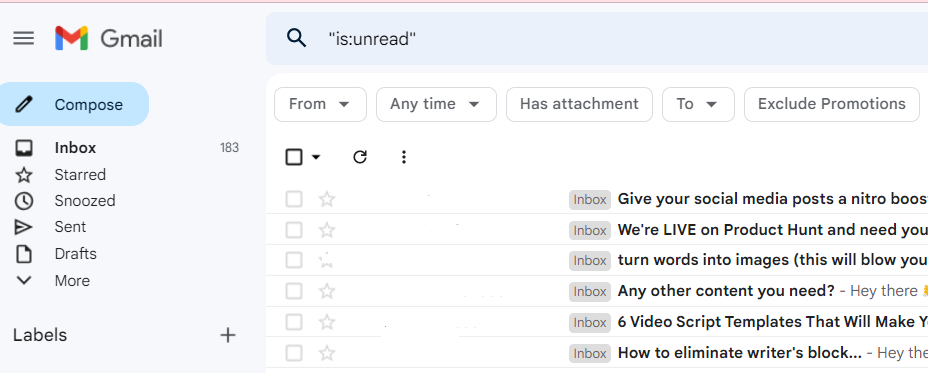
You can also use the "from" filter to only delete emails from a certain sender. For example, if you want to delete all emails from Amazon, you would type "from:amazon" into the search bar. All of the emails from Amazon will now appear.
Step 2: Select all messages
As we did before, click the drop-down box at the top of the checkboxes and select "All." All of the emails that match your filter will now be selected. However, again it'll only select 50 messages at a time.
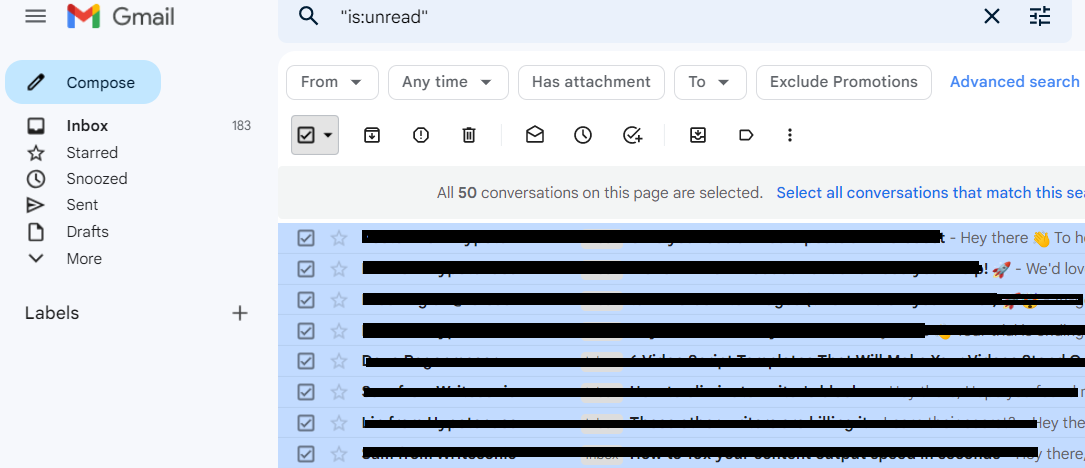
At the top of the page, you'll see a message that says "Select all conversations that match this search." This will select every email matching your filter, even if the number is in the thousands.
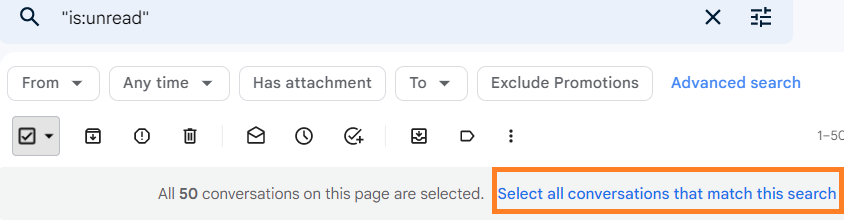
Of course, you should make sure that no important messages match this search beforehand. If you’re regularly opening and archiving important emails, this shouldn’t be an issue.
Step 3: Click “Delete” to Delete Multiple Messages in Gmail
Now, click the Trash icon to delete all of the selected messages. As before, these messages will be moved to your Trash folder and they won't be permanently deleted until you empty your Trash.
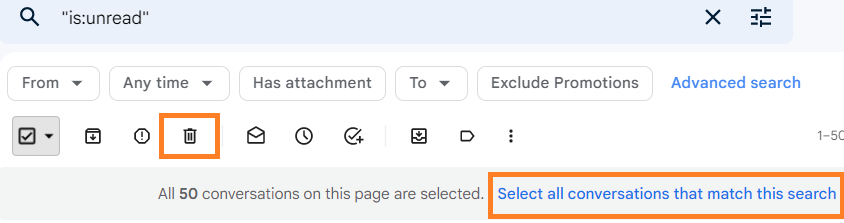
To empty your Trash, click "Empty trash now" at the top of the page and then click ‘’OK’’ in the confirmation pop-up window. All of the messages in your Trash folder will be permanently deleted, and your inbox is looking lighter than it has been in years. You now know how to delete all your Gmail emails at once.
Learn how to unarchive Gmail emails here.
How to Delete Multiple Emails in Gmail: Summary
So there you have it—two easy ways of deleting old emails in Gmail. If cleaning your inbox has ever been your New Year’s resolution, this article should help you focus your eyes on only the emails that matter.
Make sure to regularly delete and archive emails as they pop up to keep your inbox as fresh as can be. If you’re receiving unwanted emails from a certain sender, you may want to block them outright.
If you’re doing some regular clean-up, or you want to completely overhaul your inbox, here are the two ways to do so. Now, get out there and clean up your Gmail!