How to Create an Email Marketing Template for Gmail
Updated 4 min read

Table of contents
Looking for an email marketing template for Gmail? Why not make your own? A generic template will never resonate with your audience the way a handmade, personalized one will.
In this post, we'll walk you through the steps to create a standout email marketing template tailored specifically for your audience. If you’re ready to maximize your email marketing strategy's potential, let’s get started!
Can you create an email template in Gmail?
Gmail favors productivity and ease. So yes, you can create email templates and drafts in Gmail.
However, if you want to create templates to simplify your email marketing campaigns, you should know about YAMM. YAMM is an add-on that makes sending mass emails from Gmail easier.
With YAMM, you don’t even need to save your messages as templates. Email campaigns with YAMM work with Gmail drafts, so guess what? Saving a message as an email template is one less task off your hands.
How to make an email marketing template on Gmail
Step 1: Compose your message
Navigate to your Gmail.
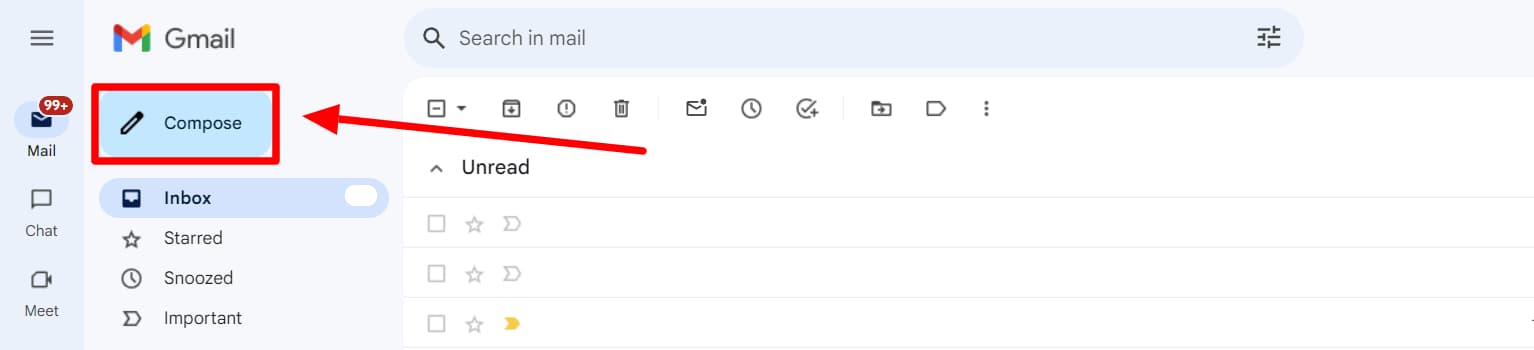
Click on the ‘Compose’ button to start creating a new message. A new message window will pop up.
Step 2: Include fields for personalization
Now, you can start composing your message. Email marketing is most effective when messages are personalized. So, before you start writing your message, take a minute to consider the opportunities for personalization.
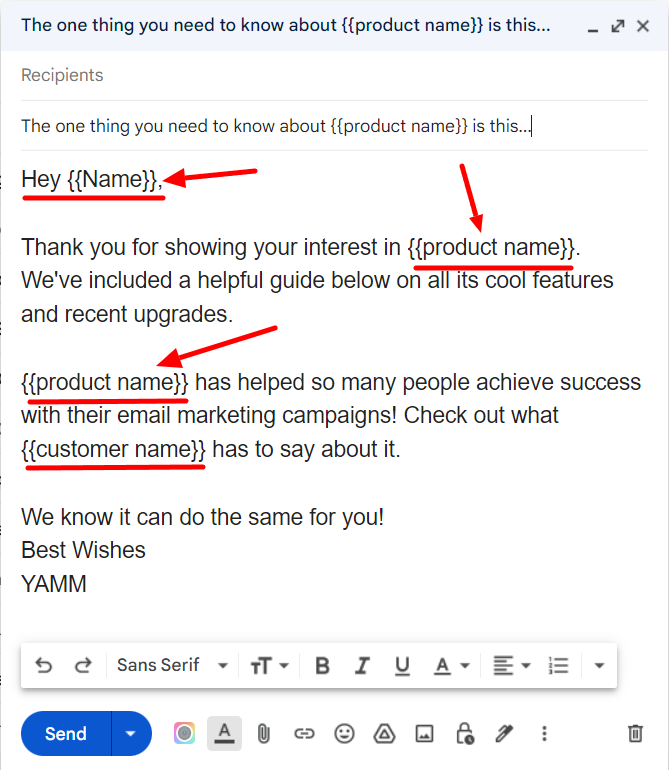
Craft your message and include fields for personalization by typing them between double curly brackets (like {{ }}). YAMM markers let you easily personalize your messages so that they resonate with your audience.
Apart from the personalized message, other things go into making a successful email marketing campaign. Learn more about the pillars of a successful email marketing campaign and how to write a good marketing email to drive your next campaign.
Step 3: Save the message as a draft
Now comes the easiest part.
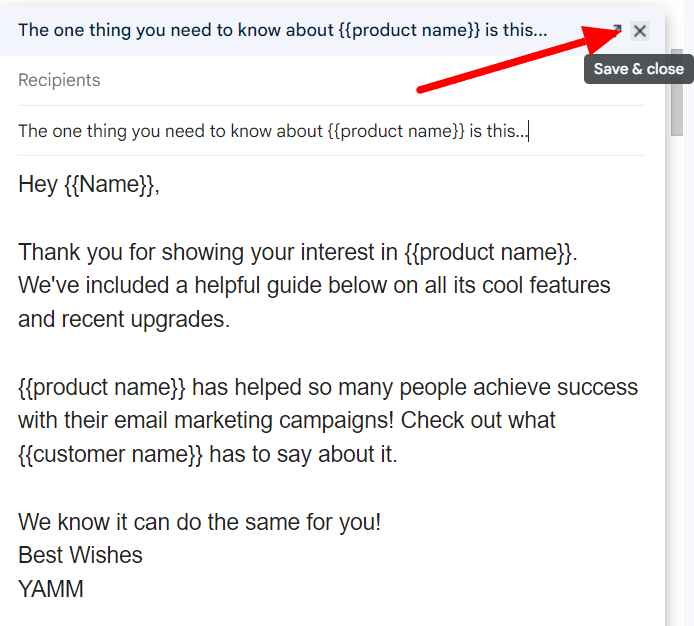
Click the close button to save a message as a draft, and Gmail will automatically save your message as a draft.
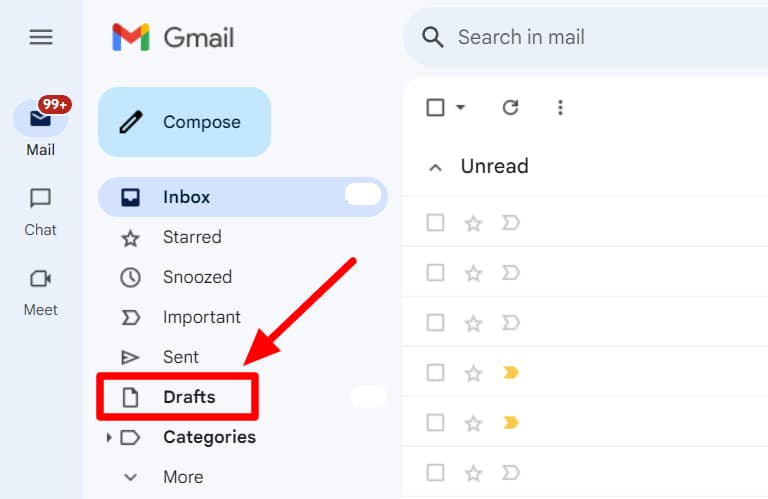
Click the ‘Drafts’ button on the left-hand panel to find your message.
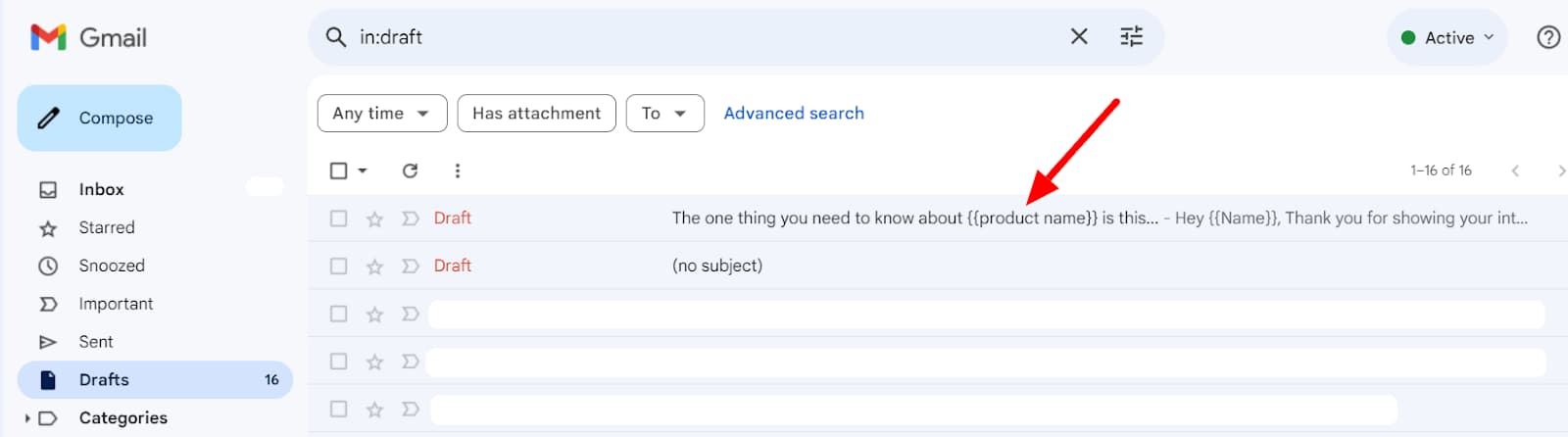
Here, you’ll be able to find your draft with the subject you inserted for it. When creating drafts in Gmail, it's important to give your message a subject or input the recipient's email address or name. This way, they’re easy to locate later.
You can comfortably move on to the next step of sending out your email campaign, as YAMM only needs an email draft to create a campaign. However, if you still want to save your message as a template, here’s how.
(optional) Save your message as a template
Click and open the draft you want to save as a template.
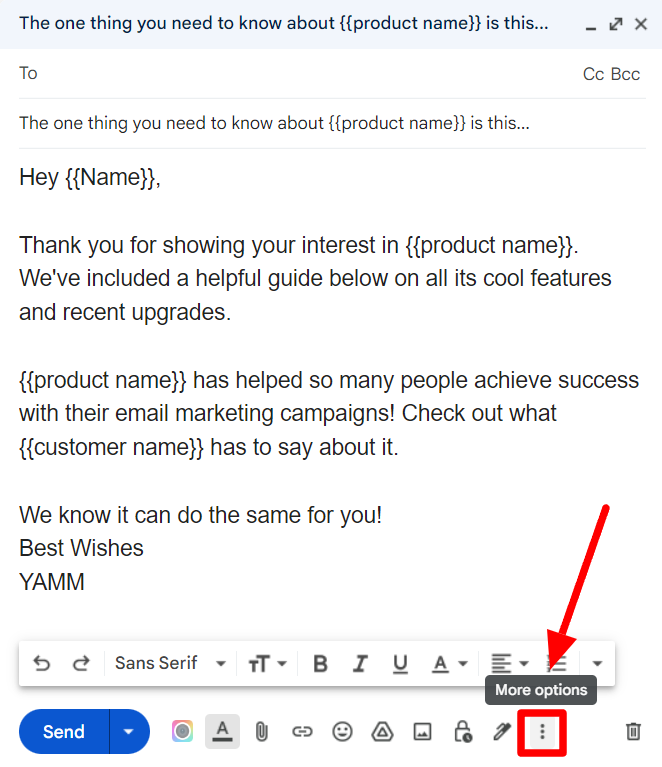
Click on the ‘More options’ button at the bottom of the message.
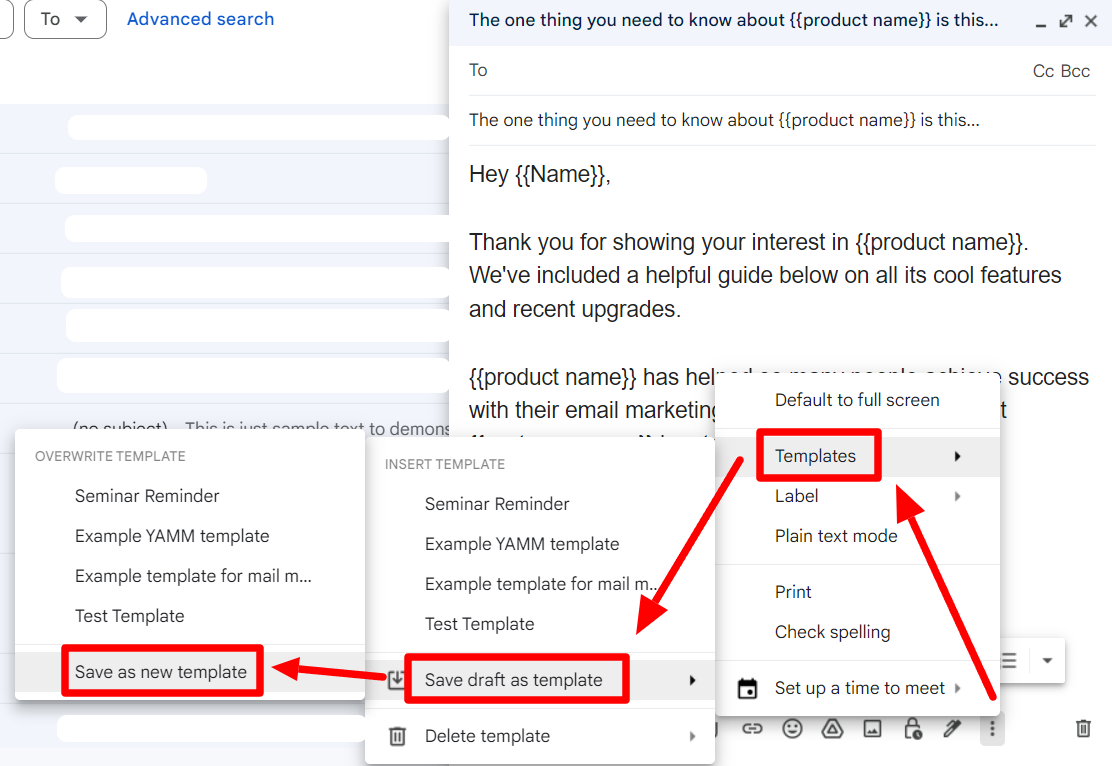
In the menu that pops up, click ‘Templates,’ then ‘Save draft as template,’ and then finally, ‘Save as new template.’
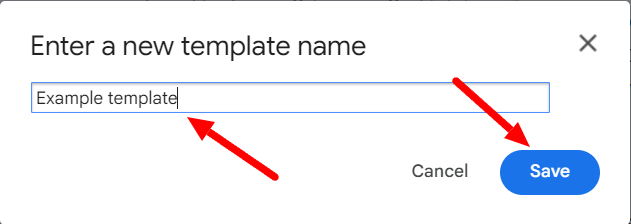
Give your template a name, and click ‘Save’. Your draft is now also saved as a template.
Step 4: Send out your marketing campaign at once
With that, you’re ready to send out your campaign.
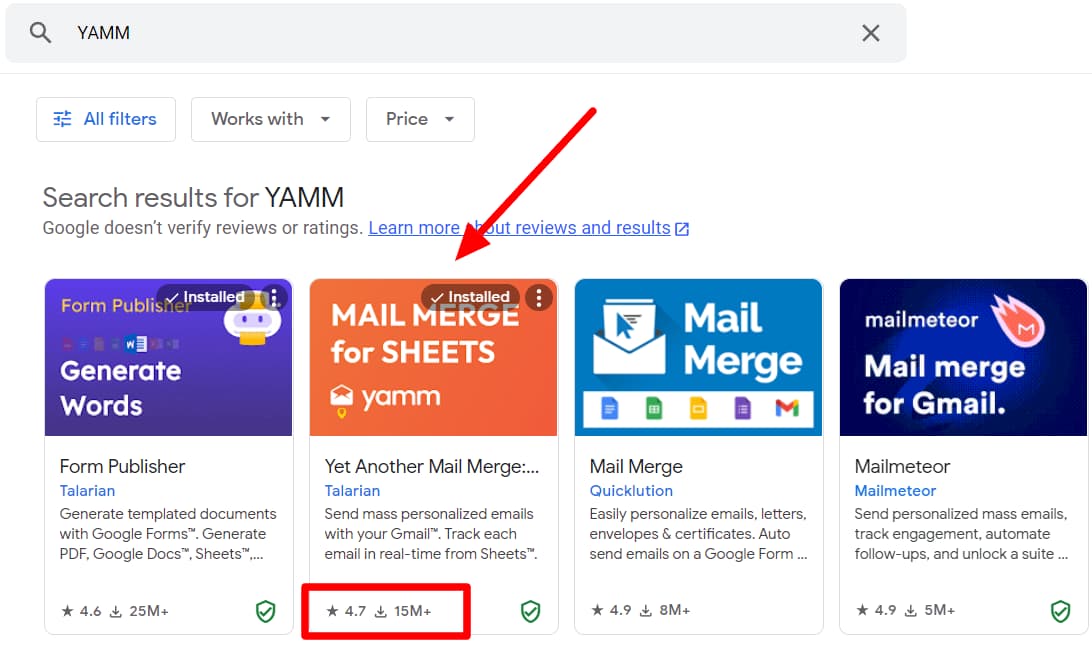
If your email campaign draft is in Gmail, there’s no other platform like YAMM on the Google Workspace Marketplace. Download YAMM to send out your Gmail draft as your next marketing campaign email.
Since Google Sheets is one of the most common ways to manage customer data, YAMM allows you to send a mail merge from Gmail and Google Sheets. Learn how to do a mail merge from Gmail and Google Sheets easily.
Email marketing with Gmail? You should use YAMM
If you like sending marketing emails with Gmail, you’ll love YAMM. YAMM allows you to easily personalize your messages and even subject lines to enhance their impact. You can also schedule your campaign and monitor its progress in real-time to improve your campaign tactics gradually.
With YAMM's templates, you can create rich and beautiful emails in minutes. You can even send personalized attachments with YAMM. And guess what? You can do all this right from your Gmail inbox or Google Sheets, so you don’t even need to worry about a learning curve! If you like Gmail, give YAMM a shot. You’ll love it!