
How to Accept Microsoft Teams Meeting Invites in Gmail
4 min read

Table of contents
Managing virtual meetings is a crucial part of today's work environment, and knowing how to use different platforms efficiently is essential.
If you’re a regular Gmail user and need to join meetings scheduled through Microsoft Teams, you might find integrating the two platforms less intuitive than expected.
This guide will walk you through the steps to accept Microsoft Teams meeting invites in Gmail. It’s easier than you think, so let’s get into it!
How to accept a Microsoft Teams meeting invite over Gmail
If you’ve received a Microsoft Team meeting invite in your Gmail, here’s how to accept it:
Step 1: Open invite email in Gmail
Find and open your email invitation to the Microsoft Teams meeting.
Step 2: Click “Accept”
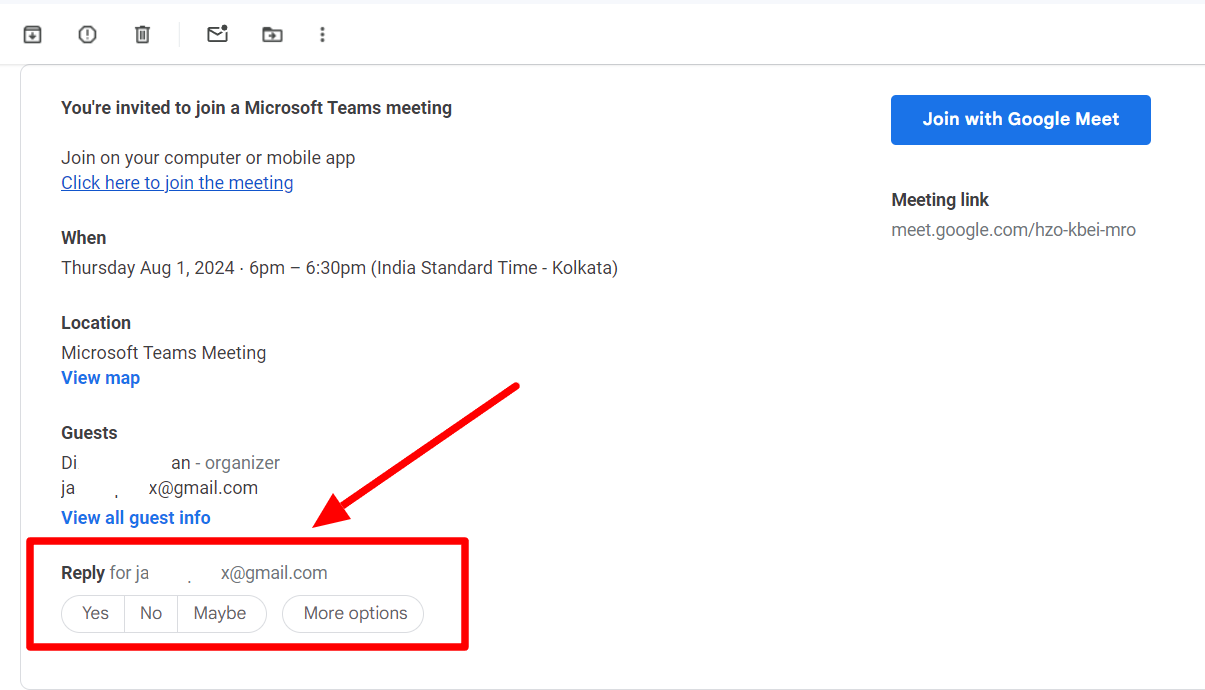
At the bottom of the invite, click ‘Yes’ to accept the meeting invite.
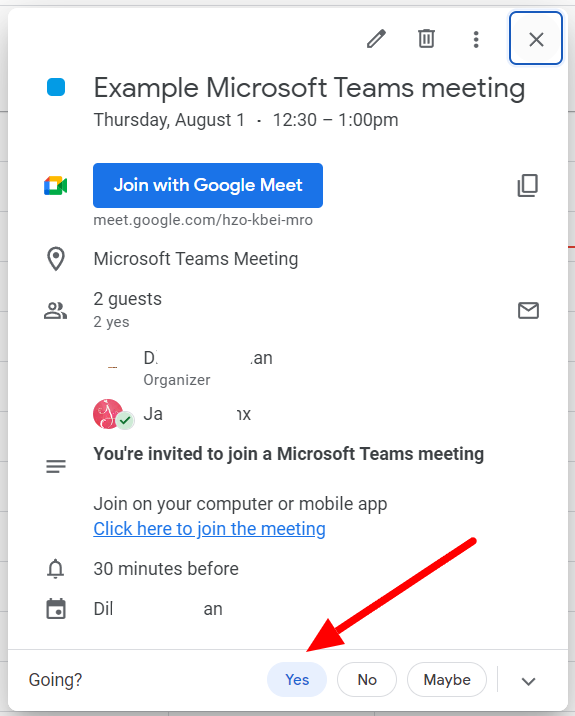
You’ll be redirected to your Google Calendar now. Click ‘Yes’ at the bottom of the meeting detail window to add the meeting slot to your Google Calendar. You’ve successfully accepted the Microsoft Teams meeting invite.
Step 3: Click link to join meeting
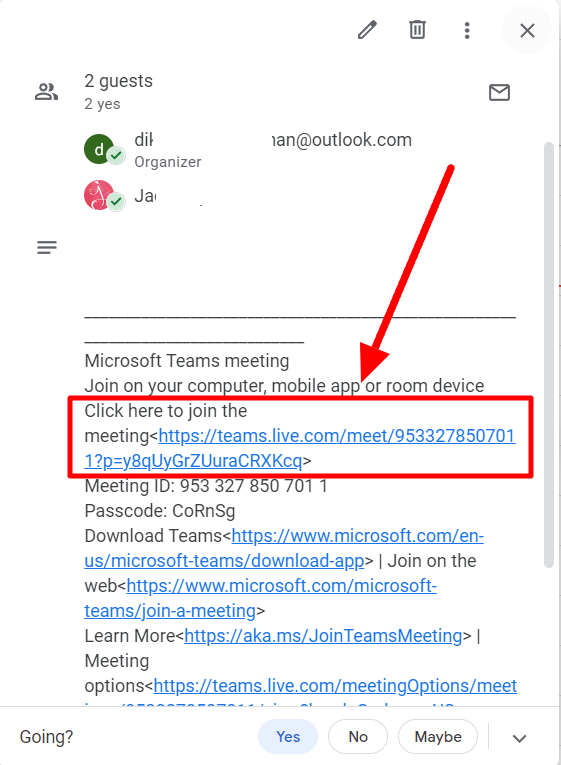
The meeting link is also in the same window. Click it to join the meeting instantly in Microsoft Teams.
Microsoft Teams vs. Google Meet: Which should you use?
You’ve accepted your Microsoft meeting invite, but as a Gmail user, it’s understandable that you want to stick to the same platform. You’re not alone if you’re wondering whether you should use Google Meet or Microsoft Teams when you schedule your next meeting.
Both are highly competent and among the most widely used video conferencing solutions today. Both platforms offer high-quality video conferencing, screen sharing, security features, and real-time chat features during meetings.
Another fundamental similarity is that they both offer tight integration with their respective productivity suites — i.e. Google Workspace for Google Meet and Microsoft 365 for Teams.
Naturally, the choice of platform will depend on which ecosystem you predominantly operate in. For Microsoft 365 users, Microsoft Teams is the optimal choice because of its integration with Office apps like Word, Excel, and PowerPoint.
On the other hand, Google Workspace users will get a more intuitive and smoother experience with Meet. If you’re not committed to either, here’s some pros and cons of both to help you decide:
Microsoft Teams
Pros:
- Offers a maximum capacity of 1000 participants while Meet taps out at 500
- Offers way more third-party app integrations than Meet
- Offers advanced customization features for personalization
- Turns out cheaper per user
Cons:
- The interface may be complicated for users
- Offers 10 GB cloud storage per user only
- Can be laggy.
Google Meet
Pros:
- Simple and intuitive interface
- Offers cloud storage starting at 15 GB per user
- Offers a more stable, AI-powered connection
Cons:
- Doesn’t offer personalization of workspace features.
- Fewer integrations than Teams
So, there you have it. Microsoft Teams may be a better choice if you frequently host large, enterprise-level meetings or webinars. However, for those focusing on more intimate, one-on-one sessions, Google Meet is ideal. Learn how to schedule a Google Meet meeting in Gmail here.
It’s not that Google Meet doesn’t support enterprise-level events or meetings. It’s just that users are sure to have a smoother experience with more features with Microsoft Teams, which better caters to complex organizational needs.
Of course, you can also look into Zoom, another effective platform for video conferencing. Zoom can even be easily integrated with Gmail with a simple add-on. Learn how to schedule a Zoom meeting in Gmail.
Learn more about Gmail on the YAMM blog
Gmail is an intuitive platform that allows you to do almost anything while monitoring your inbox. Learn how to use Gmail with the YAMM blog!
Whether you're looking to optimize your email management, explore new Gmail features, or schedule meetings, the YAMM blog offers comprehensive guides and insights for new and seasoned Gmail users. Get ahead with Gmail and check out the YAMM blog!