
How to Add Contacts to Gmail
Updated 3 min read

Table of contents
Effective communication involves managing your contacts well. Also, knowing how to add contacts to Gmail is a fundamental skill that can also enhance your productivity.
So, this step-by-step tutorial will provide clear instructions on how you can add contacts to Gmail and also how you can import contacts from a Gmail account. By the end, you’ll be fully equipped to manage your contacts in Gmail effectively. Let’s dive in!
How to add contacts to Gmail on a computer with Google Contacts
If you want to add contacts so that they are accessible to you when you’re using Gmail, you have to add them to your Google Contacts. Here are the steps to doing that.
Step 1: Go to Google Contacts
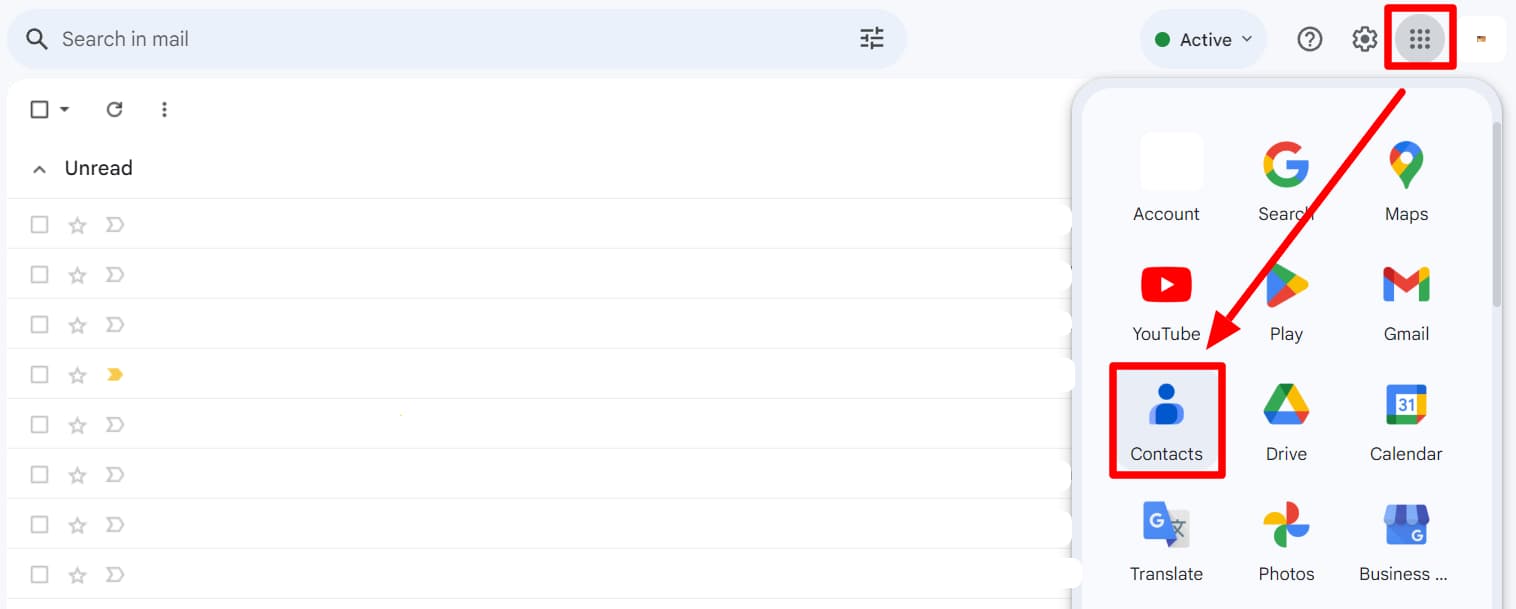
If you’re in Gmail, you can quickly access your Google Contacts by clicking on the Google Apps button at the top right corner and then clicking on the ‘Contacts’ button.
If Google is your home page, you can do the same.
Step 2: Create a contact
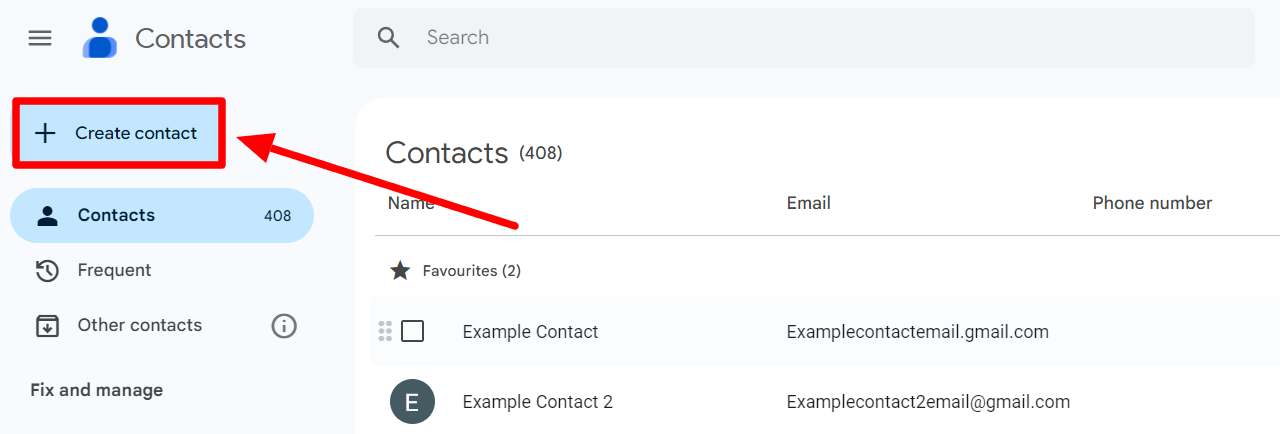
Once you’re in your Google Contacts, click the ‘Create contact’ button.
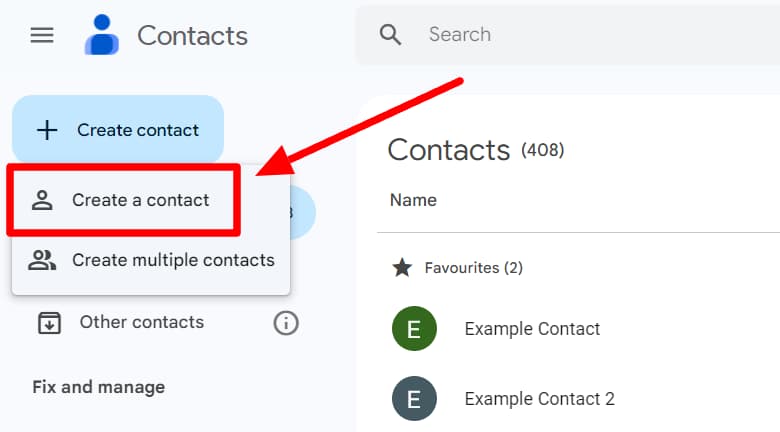
If you want to add just one contact, click ‘Create a contact’ when the drop-down menu opens.
Step 3: (optional) Create multiple contacts
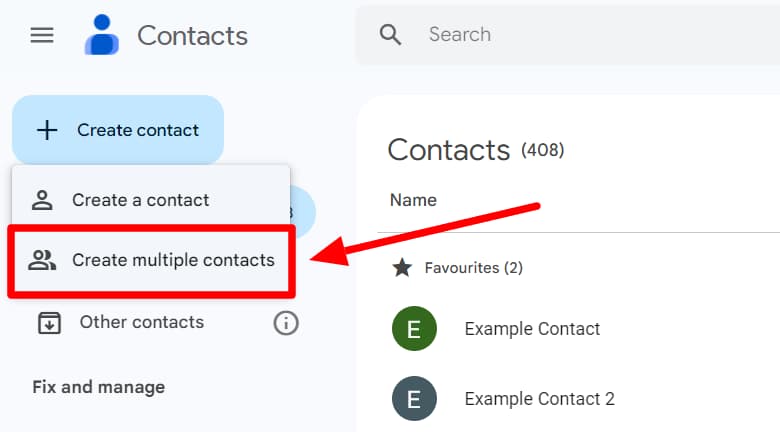
If you want to quickly add more than one contact, click ‘Create multiple contacts.’
Step 4: Add contact information
Now, you can start adding the contact information. If you’ve clicked ‘Create a contact,’ the process will look different from when you click ‘Create multiple contacts.’ Let’s see how to add one contact first.
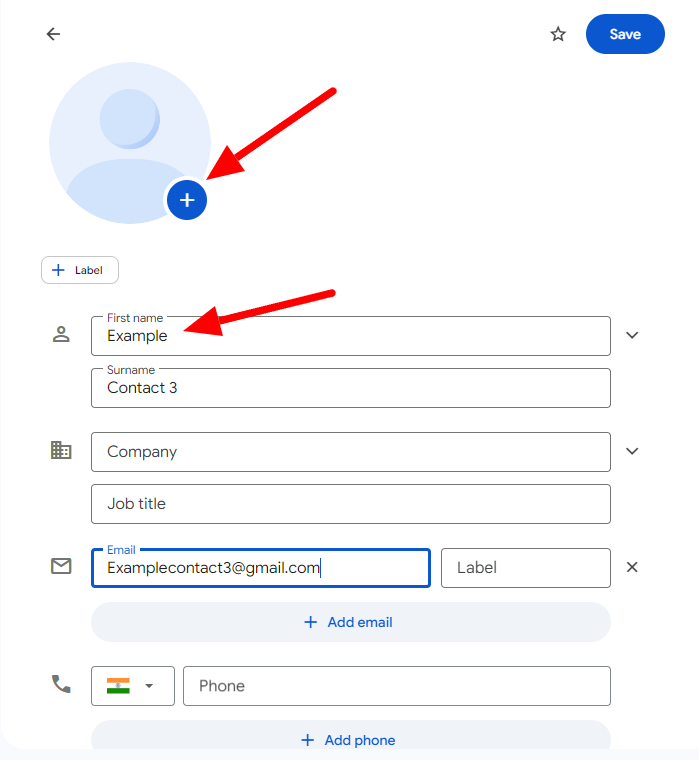
Click on the ‘+’ button next to the image to add a picture of your contact. This is optional. Then, you can move on to adding the name and other details like work information, email, phone number, address, and more.
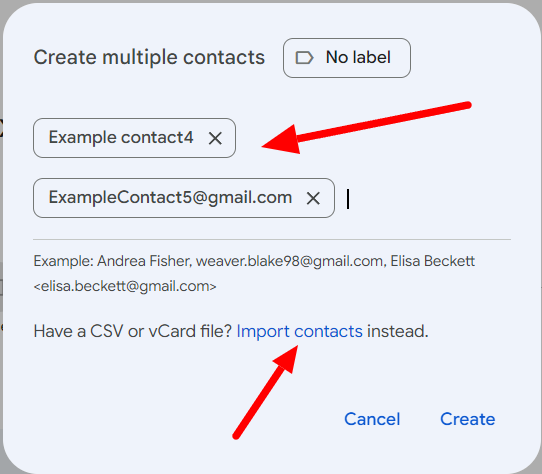
If you click on ‘Create multiple contacts,’ you can quickly type or copy-paste multiple contacts you want to save. You can type in names and email addresses, but it’s important to separate them with commas to let Google know that they are different contacts and should be saved separately.
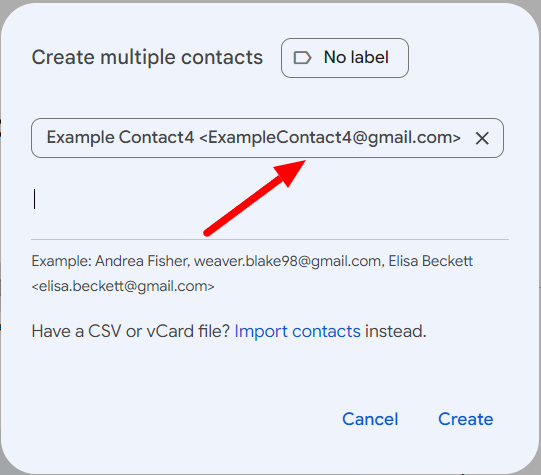
If you want to type a contact’s name and add their email address, insert the email ID within <> brackets. This way, they’ll not get saved separately but as one contact. You can quickly import contacts here as well.
Step 5: Click “Save”
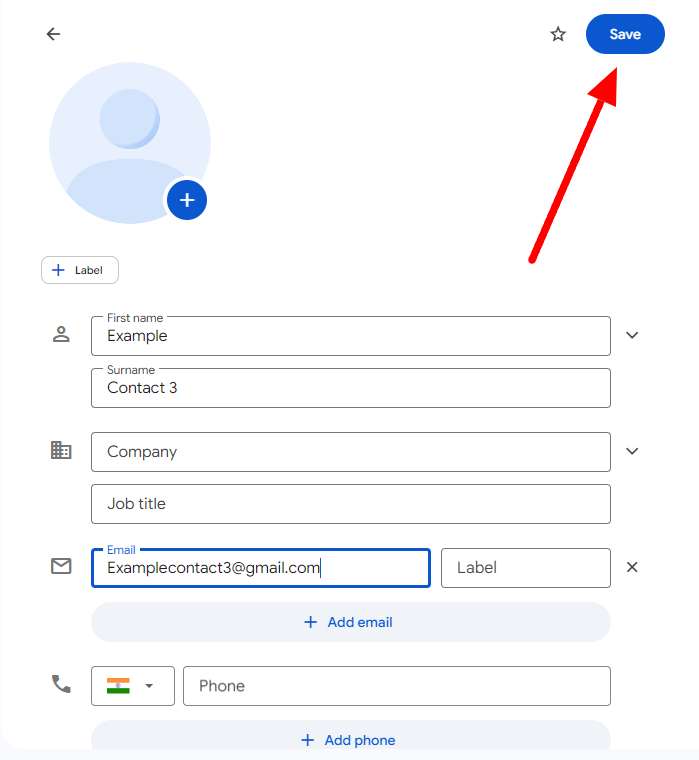
Once you’ve added the contact details, click ‘Save’ to create your contact.
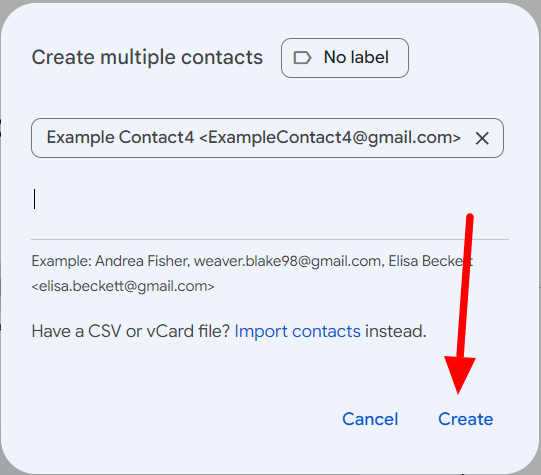
When adding multiple contacts, you simply have to click ‘Create,’ and you’ve successfully added new contacts to your list. For more information on importing contacts, check out our guide to how to import contacts to Gmail from a CSV file.
If you want to send emails to multiple contacts, you should learn how to find your contact list in Gmail. And if you’re sending mass emails, you should know about YAMM.
Send a mail merge to all your contacts on Gmail with YAMM
If you send mass messages through Gmail to all your new contacts at once, you should also know about YAMM. YAMM is a simple add-on that allows you to send mail merges directly through Gmail. Check out how sending mail merge through YAMM beats sending mass messages through Gmail.
Explore YAMM today!