How to Check Your Spam Folder on Gmail
4 min read
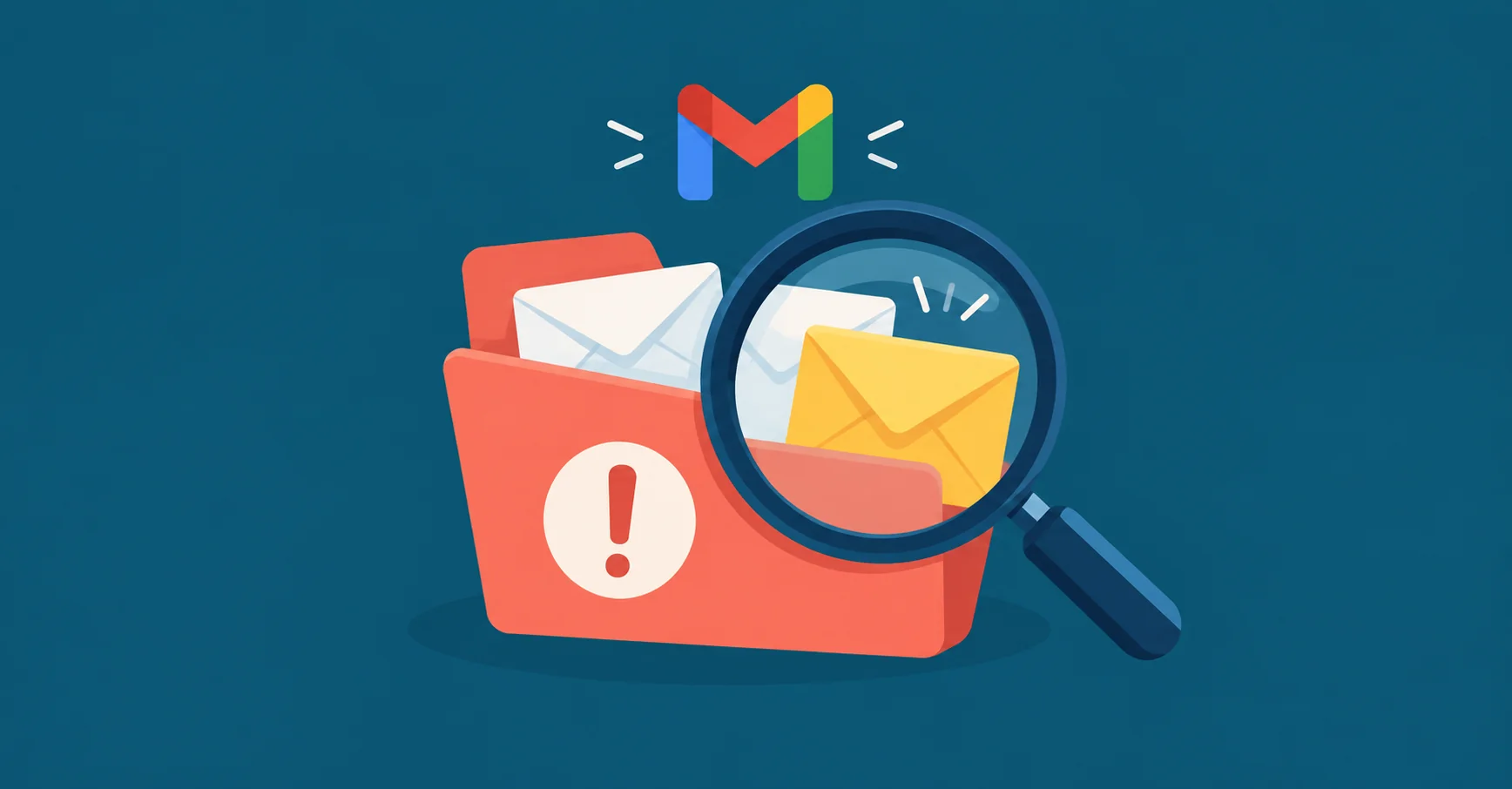
Table of contents
Are you worried about missing important emails in your Gmail? Your spam folder could be the culprit! Gmail's spam filter is designed to protect you from unwanted or malicious emails, but sometimes legitimate emails may also end up there.
By learning to access and review your spam folder, you'll gain better control over your inbox and avoid mistakenly missing important messages.
In this blog post, we’ll guide you through how to check your spam folder on Gmail on desktop and mobile, ensuring you never overlook an important message again. Let’s begin.
How to open your Gmail spam folder on desktop
Step 1: Open Gmail
Navigate to your Gmail on your browser. If you use Google Chrome, you can just open a new tab to find Gmail shortcuts under the search bar or in the top left corner.
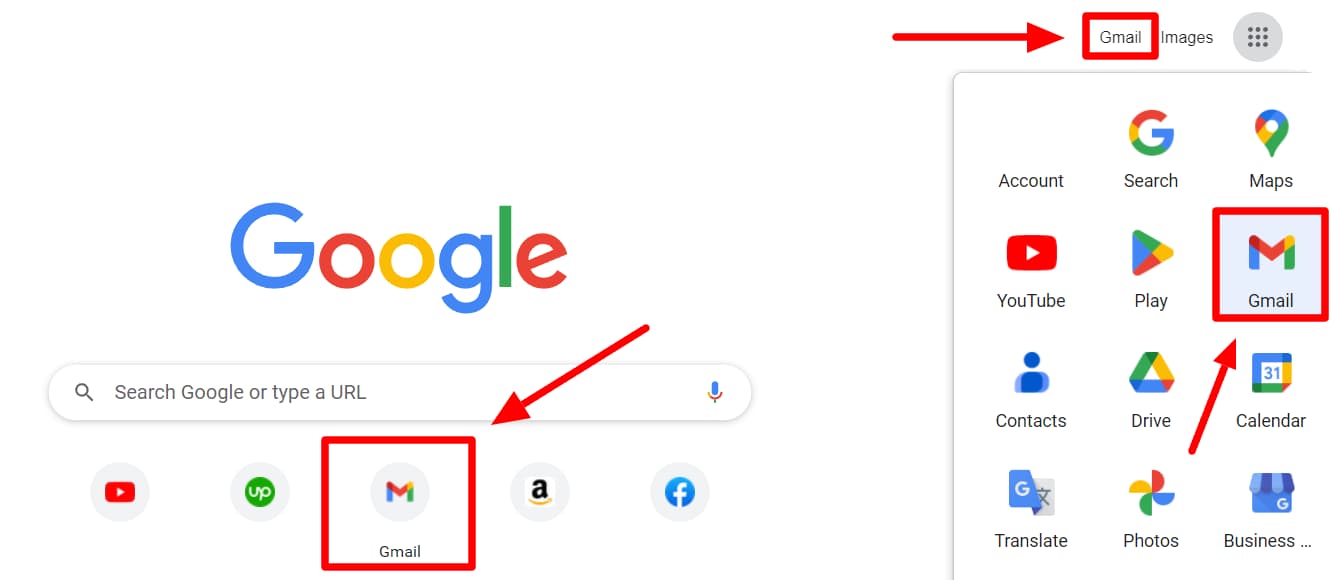
Step 2: Click “More” on left panel
Once in your Gmail inbox, click the “More” button on the left side panel to open more categories.
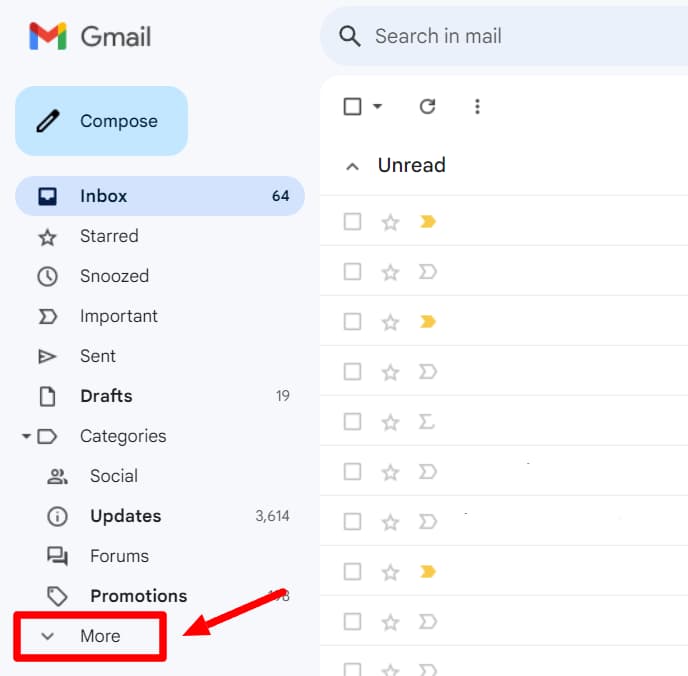
Step 3: Click “Spam”
Find and click “Spam” in the new categories that open up. This will send you to your spam folder.
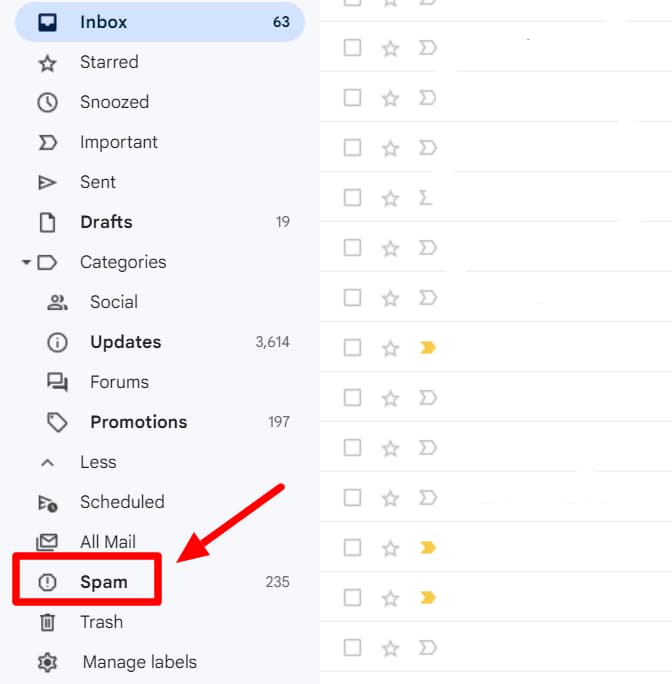
Step 4: Check your spam folder
Now that you’re in your spam folder, you can do a few different things here.
You can manually go through the messages in your spam folder. If you see one that looks like it may be important, you can open it to confirm its contents. If the message is important and doesn’t belong in the Spam folder, you can click the “Report not spam” button.
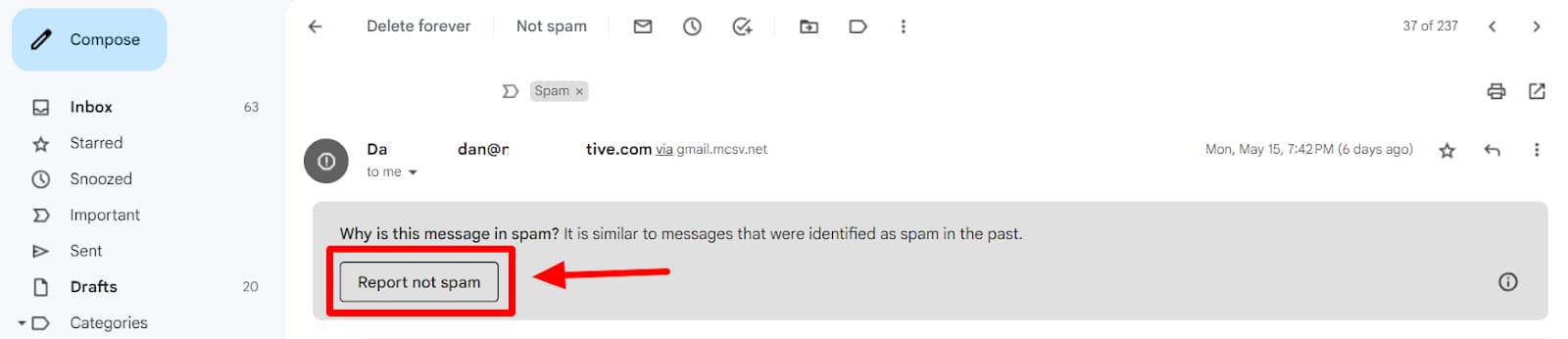
Gmail will show you a notification confirming the message has been unmarked as spam and moved to your inbox.

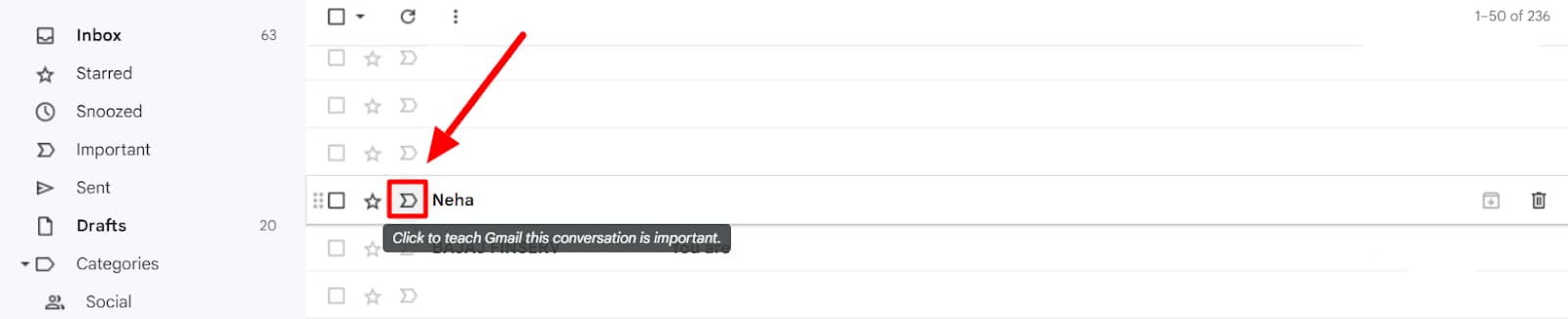
Another way to move important messages to the inbox is to click the important label before a message. This teaches Gmail that such conversations are important and don’t need to be sent to the spam folder.
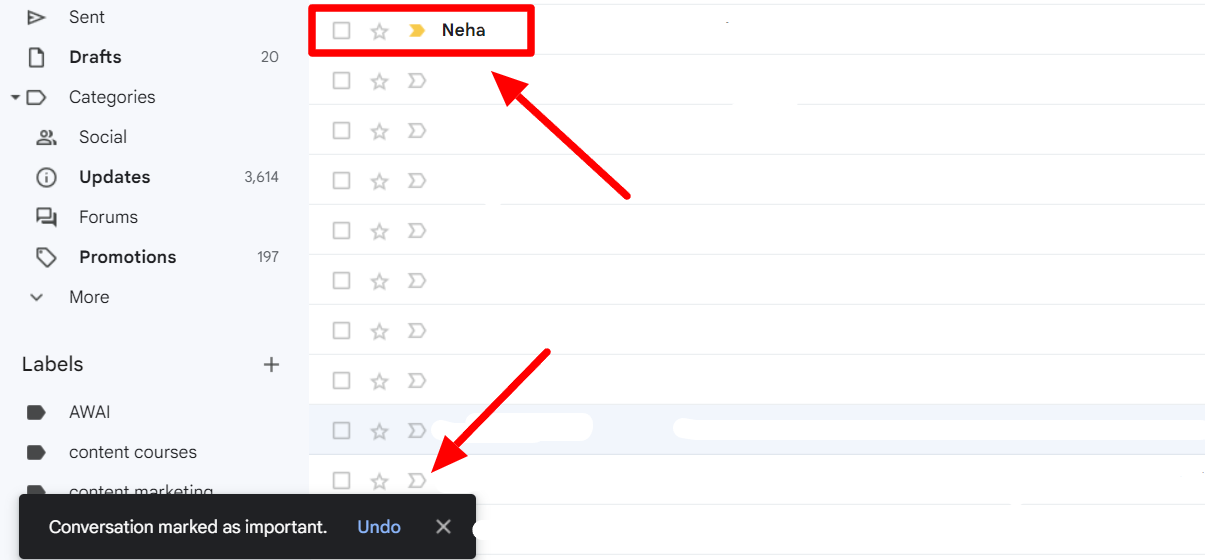
When you click on the important label, Gmail shows you a notification saying the message has been marked as important.
If you like, you can empty your spam folder by clicking “Delete all spam messages now.” Make sure you’ve marked important messages as “Not spam” or labeled them as important before emptying your spam folder.

Messages in the spam folder are automatically deleted after getting 30 days old. The above method is just a way to fast-track it.
How to check your spam folder on Gmail on mobile
If you’re on mobile, you can still check your Gmail spam folder. Here are the steps:
Step 1: Open the Gmail app
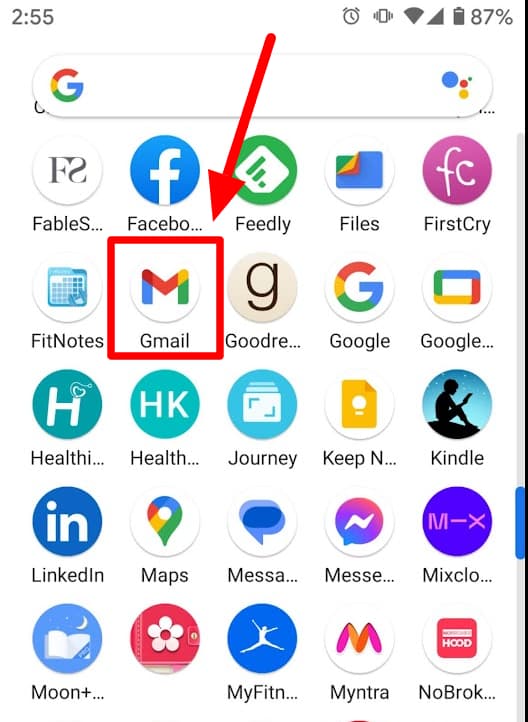
Click the Gmail app button on your mobile. If you don’t have it installed already, you can download the Gmail app from the Google Play Store or App Store.
Step 2: Click the three-lines icon
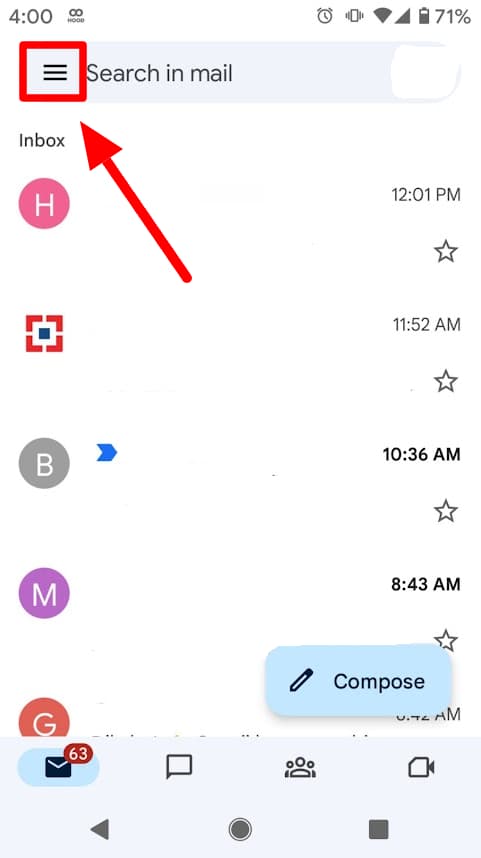
Once you’re signed in and in your inbox, click the “Menu” button (three lines) in the top left corner.
Step 3: Scroll down and click “Spam”
In the menu that opens, find and click the “Spam” button. This will take you to your Spam folder.
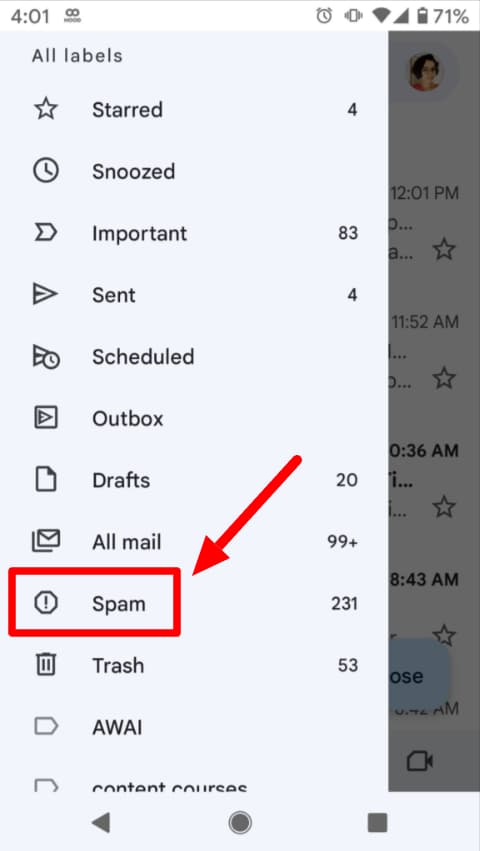
Step 4: Check your spam messages
Now that you’re in your Spam folder check to see if there are messages that don’t belong there.
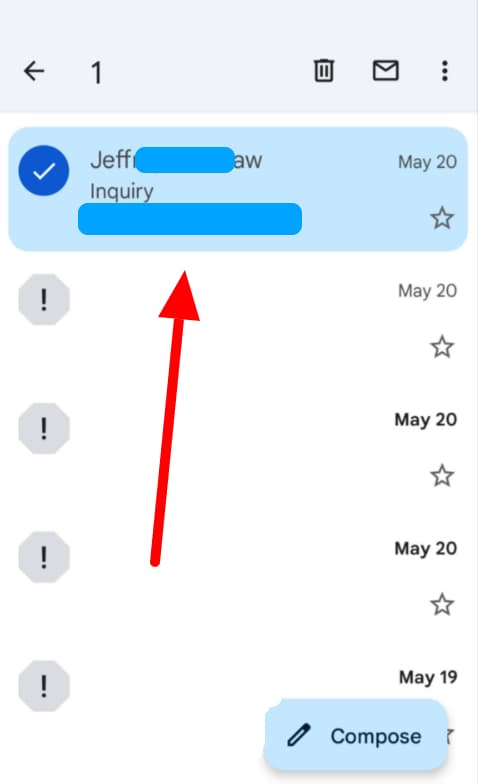
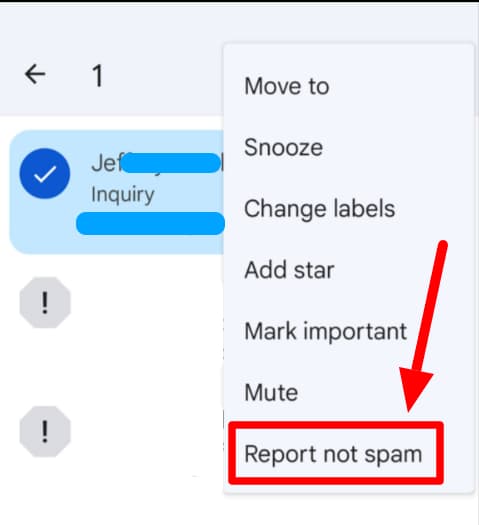
If you find a message that’s not spam, select it and click the three dots in the top right corner. In the menu that opens, click “Report not spam.” This message is now labeled as “not spam” and will subsequently be delivered to your Inbox
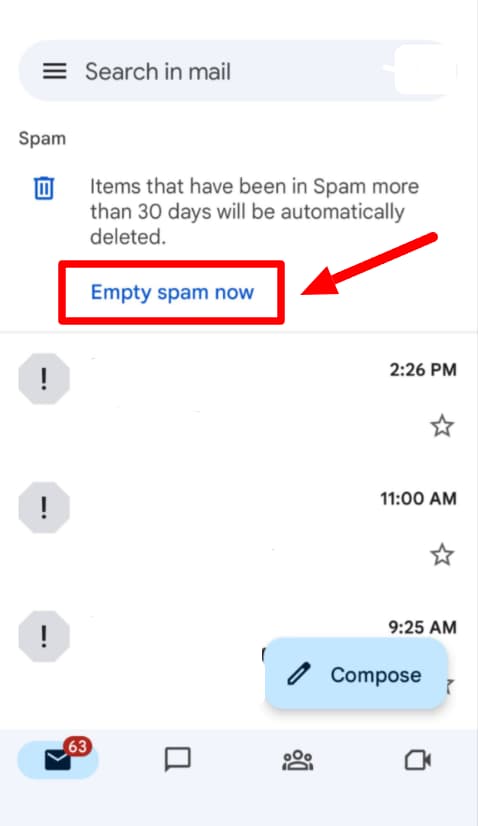
If you’d like to empty your spam folder, simply click “Empty spam now” at the top of your Spam folder.
You now know how to check your spam folder on your desktop and mobile!
Did you know that just like you may have found some important emails in your spam folder, the emails you send to others may also end up in their spam folders? Learn more about whether your emails are going to spam and what to watch out for.
Want to know more about Gmail? Check out the YAMM blog!
Knowing your way around Gmail is a surefire way to boost your productivity. When you cut out the time spent on Gmail with tricks and tips, you have more time for work. If you’re interested in learning more about Gmail's various features and functions, you’ll love the YAMM blog. Check it out!