How to Delete Labels in Gmail
Updated 7 min read
Table of contents
When it comes to dealing with email, organization is key. That's why Gmail offers users the ability to create labels. That doesn’t mean these labels will always be useful—some could be temporary, or you might want to organize emails differently. Whatever the reason, it's easy to delete a label in Gmail.
Here's a step-by-step guide on how to delete labels in Gmail, both on desktop and mobile (Android & iPhone) devices. Whether you're at your desk or on the go, you can get rid of any unwanted labels quickly and easily.
What are Gmail labels and filters?
In Gmail, a label is a way to categorize your email. It’s like a tag that you can assign to individual messages or conversations. This can be helpful if you want to keep your inbox organized or if you need to quickly find a specific email.
You can create as many labels as you want, and you can also nest labels (create sub-labels) under other labels. For example, you could have a "Work" label and then create sub-labels for each of your projects.
Labels can also be used in conjunction with filters. This allows you to automatically apply labels to incoming messages based on certain criteria, such as the sender's email address or certain keywords.
There are endless ways you can use labels, but here are a few examples:
- To categorize emails from different projects
- To sort emails from different family members
- To keep emails from online shopping in one place
However, for this article, we'll be focusing on how to delete Gmail labels. If you're interested in learning more about creating and using labels, check out our guide on how to organize your Gmail where we go into more detail.
How to delete a label in Gmail on desktop
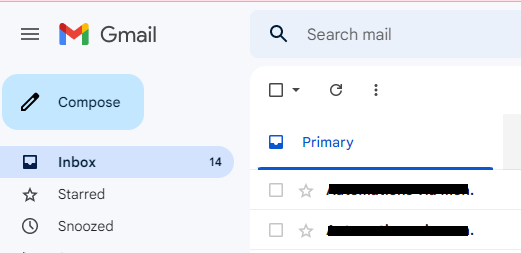
Step 1: Go to Gmail
To get started, open up your Gmail account in a web browser and sign in if necessary.
Step 2: Go to the Gmail labels settings
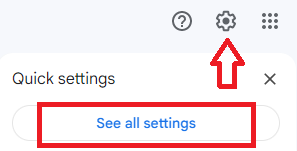
Next, click on the settings cog in the top right-hand corner of the screen and select "See all settings" from the drop-down menu. A new tab or window will open with the Gmail settings page.
On this page, click on the "Labels" tab next to the ‘’General’’ tab at the top. This will take you to the labels settings page where you can manage your existing labels.
Step 3: Delete the Gmail label you want to
Scroll down to the "Labels" section and find the label you want to delete. Then, click on the ''Remove'' link next to it.
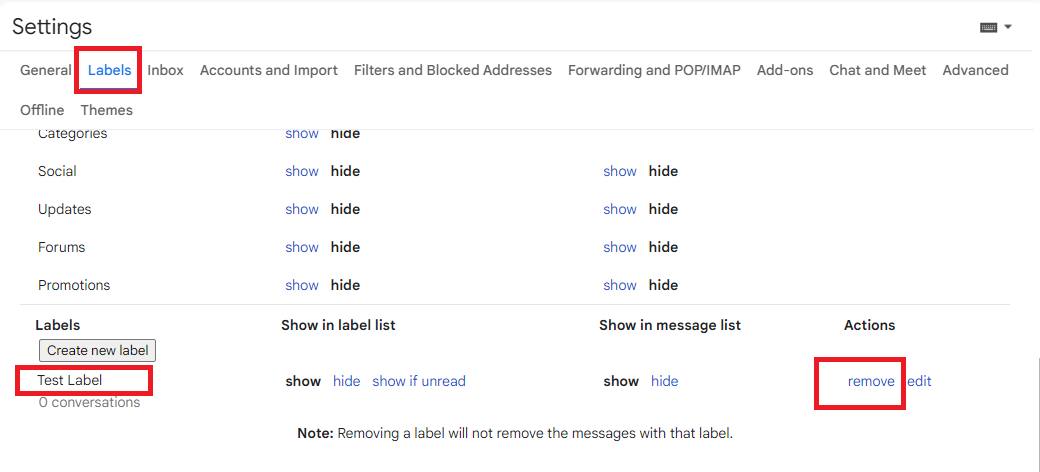
A pop-up window will appear asking you to confirm that you want to delete the label. If you're sure, click on the "Delete" button. By using this method, you can easily delete multiple Gmail labels at once.
However, if you want to delete an individual label, you can directly delete it from your inbox. To do this, scroll down to the "Labels" section of the left sidebar and find the label you want to delete. Then, click on the "More" link next to it and select "Remove label."
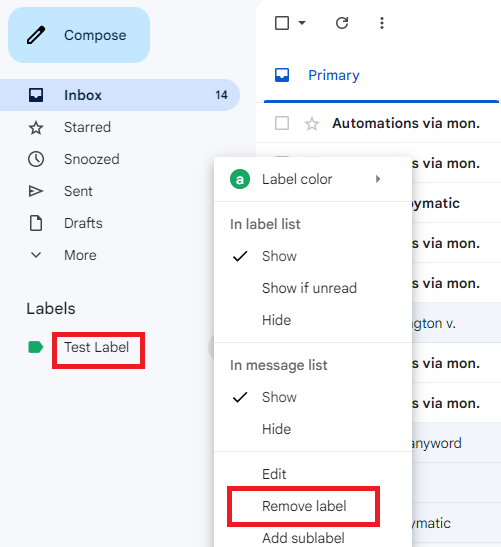
A pop-up window will appear asking you to confirm that you want to delete the label. If you're sure, click on the "Delete" button and the label will be removed from your inbox.
And that's it! Those are two easy methods you can use to delete Gmail labels using a desktop computer. But what if you want to delete a label when you're on the go?
How to delete labels in Gmail on Android
Step 1: Go to Gmail in your web browser
Unfortunately, in the Android Gmail app, there’s no way to delete labels. However, you can still use the browser to open Gmail and delete or edit labels on your Android device through the browser.
Open up your mobile browser and go to Gmail. We'll need to access the desktop version of Gmail to delete our labels.
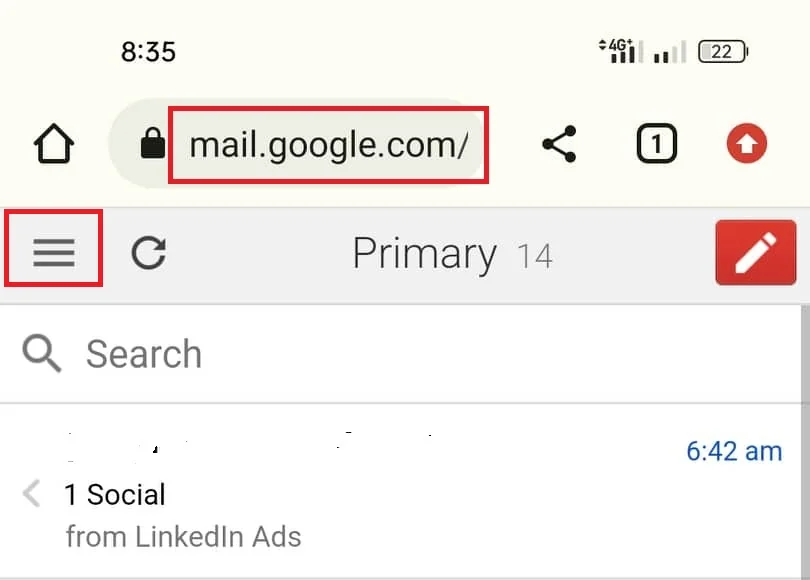
Any web browser will do, but we recommend using Google Chrome for the best functionality. Next, if you're not automatically signed in, enter your email address and password to sign into your Gmail account.
Step 2: Change to desktop mode
Once you're signed in, tap on the three verticle lines in the top left-hand corner of the screen. It'll open up a side menu with some options like "Inbox," "Labels," and "More." At the bottom of this page, you'll see an option that says “Desktop.” Tap on this.
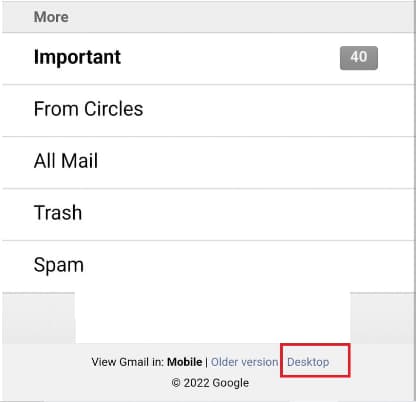
This will change the Gmail website from a mobile view to a desktop view. Now, you should be able to see the "Labels" option in the side menu. If not, try refreshing the page.
Step 3: Click on ''Edit labels'' in Gmail
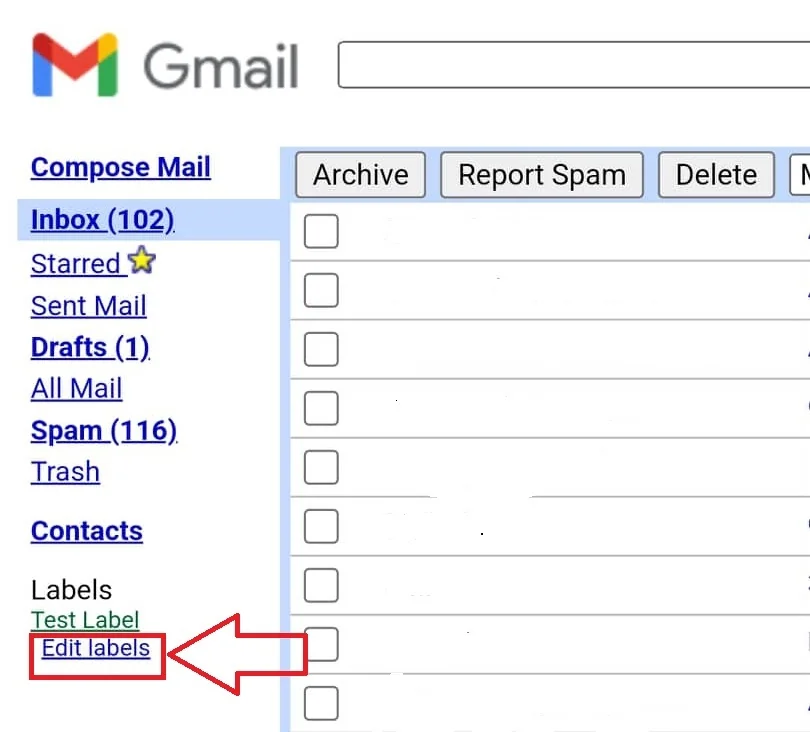
Under the "Labels" section of the side menu, you should see an option that says "Edit labels." Tap on this and you'll be taken to the labels settings page. It'll look a bit different from the desktop version, but it should have all the same options to edit Gmail labels.
Step 4: Delete the Gmail label you want to
On the label's setting page, find the label you want to delete and tap on the "Remove" button next to it. It'll instantly be deleted from your Gmail account, so be careful not to delete any labels you don't want to get rid of.
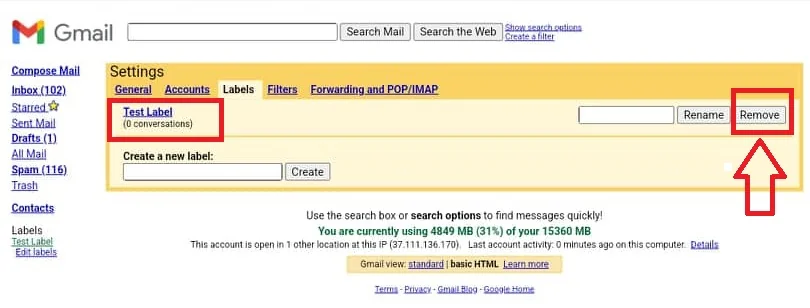
And that's how you delete Gmail labels on Android! This method can be a bit tedious if you have a lot of labels to delete. So, if you want an easier way to manage your Gmail labels, we recommend using the desktop version of Gmail instead.
However, it’s easy to delete Gmail labels using the iPhone app.
How to delete labels in Gmail on iPhone
Step 1: Go to the Gmail app
If you want to delete labels in Gmail on your iphone, the first step is to open up the Gmail app. If you don't have it installed, you can download it for free from the App Store.
Once the app is installed, enter your email address and password to sign into your Gmail account. Then, tap on the "Menu" button in the top left-hand corner of the screen.
Step 2: Go to Settings
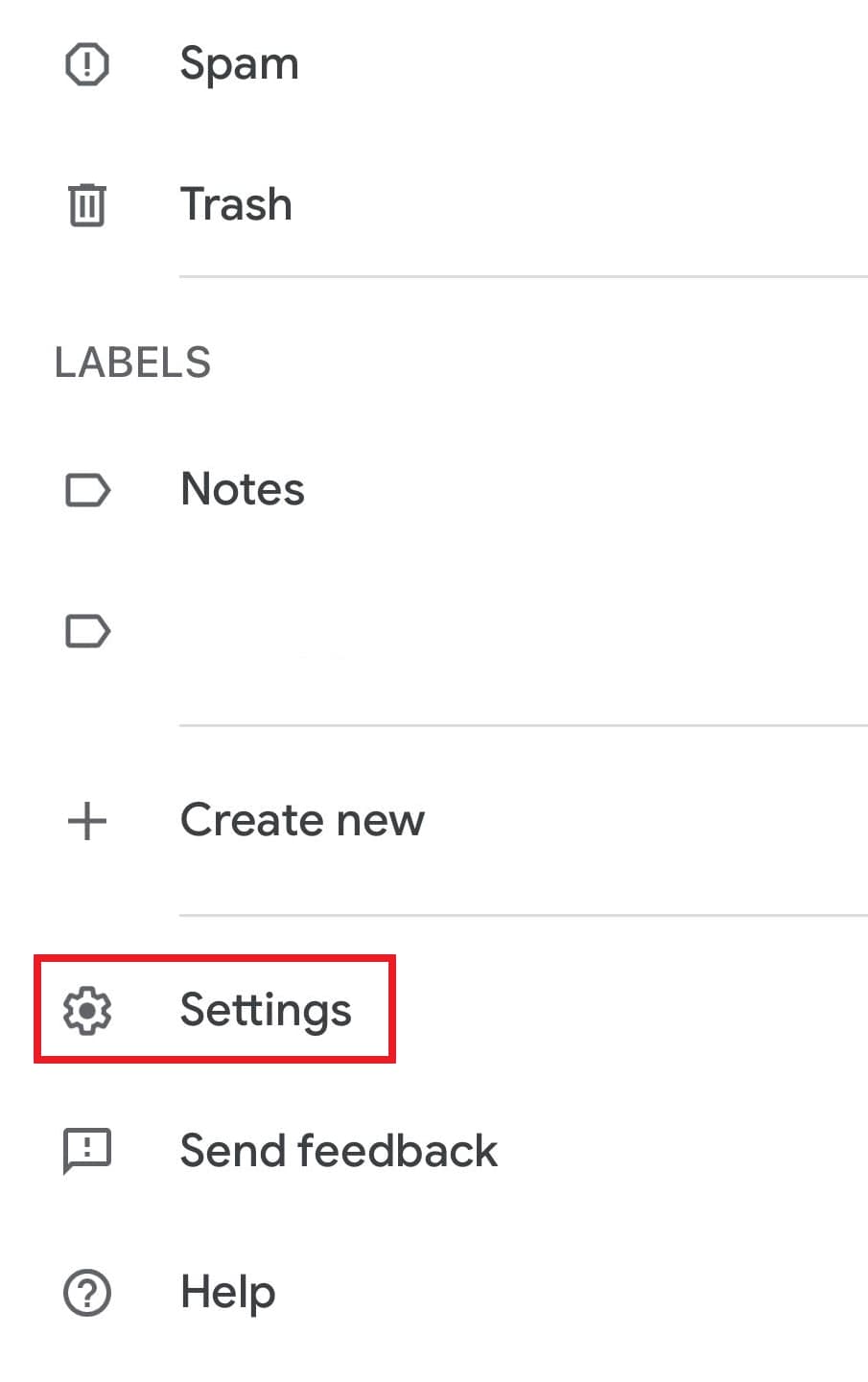
In the side menu, tap on the "Settings" option. This will bring you to the Settings page where you can manage all of your Gmail account settings.
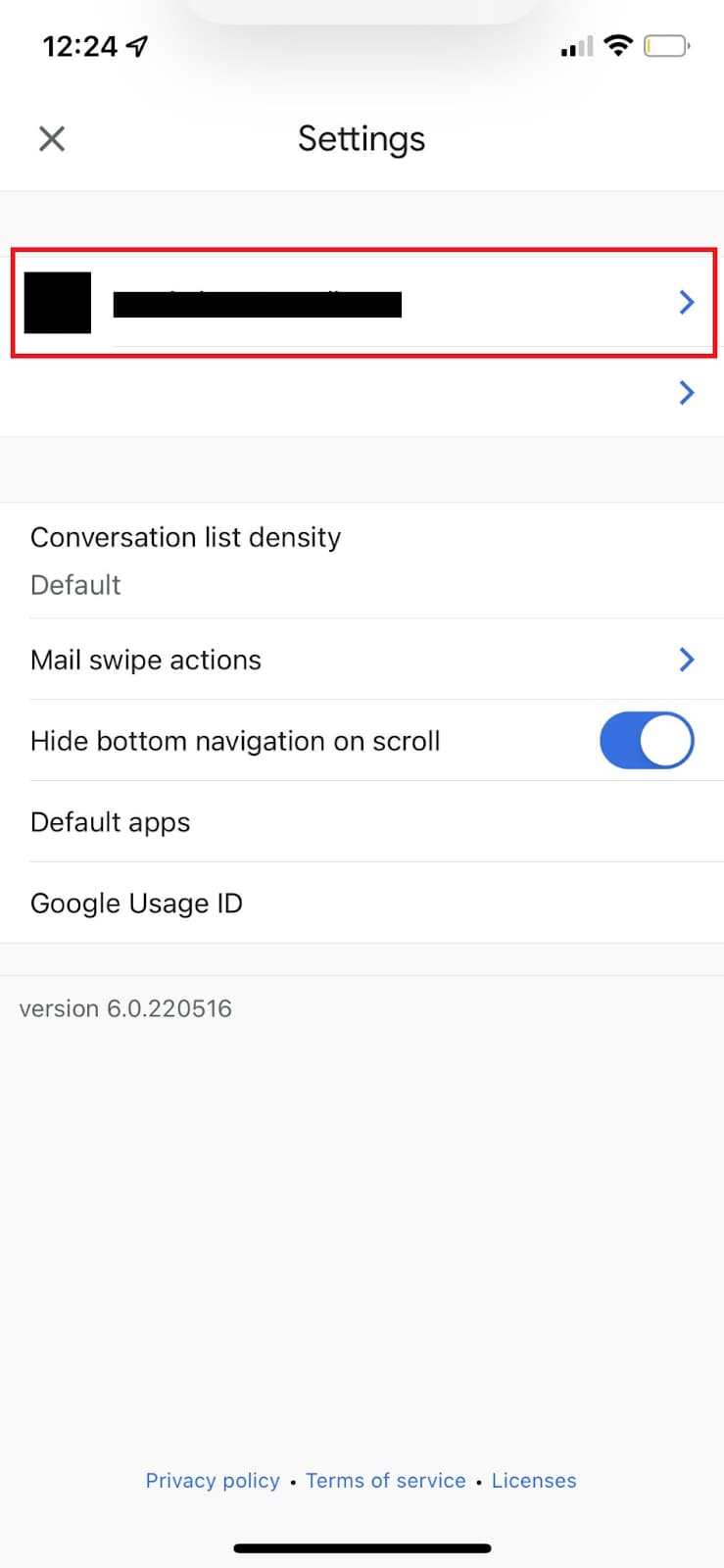
Step 3: Click the right account
At the top of the Settings page, you'll see a list of all the Gmail accounts you've added to the app. If you only have one account, tap on it to open up the account settings. If you have multiple Gmail accounts, tap on the one you want to delete labels from.
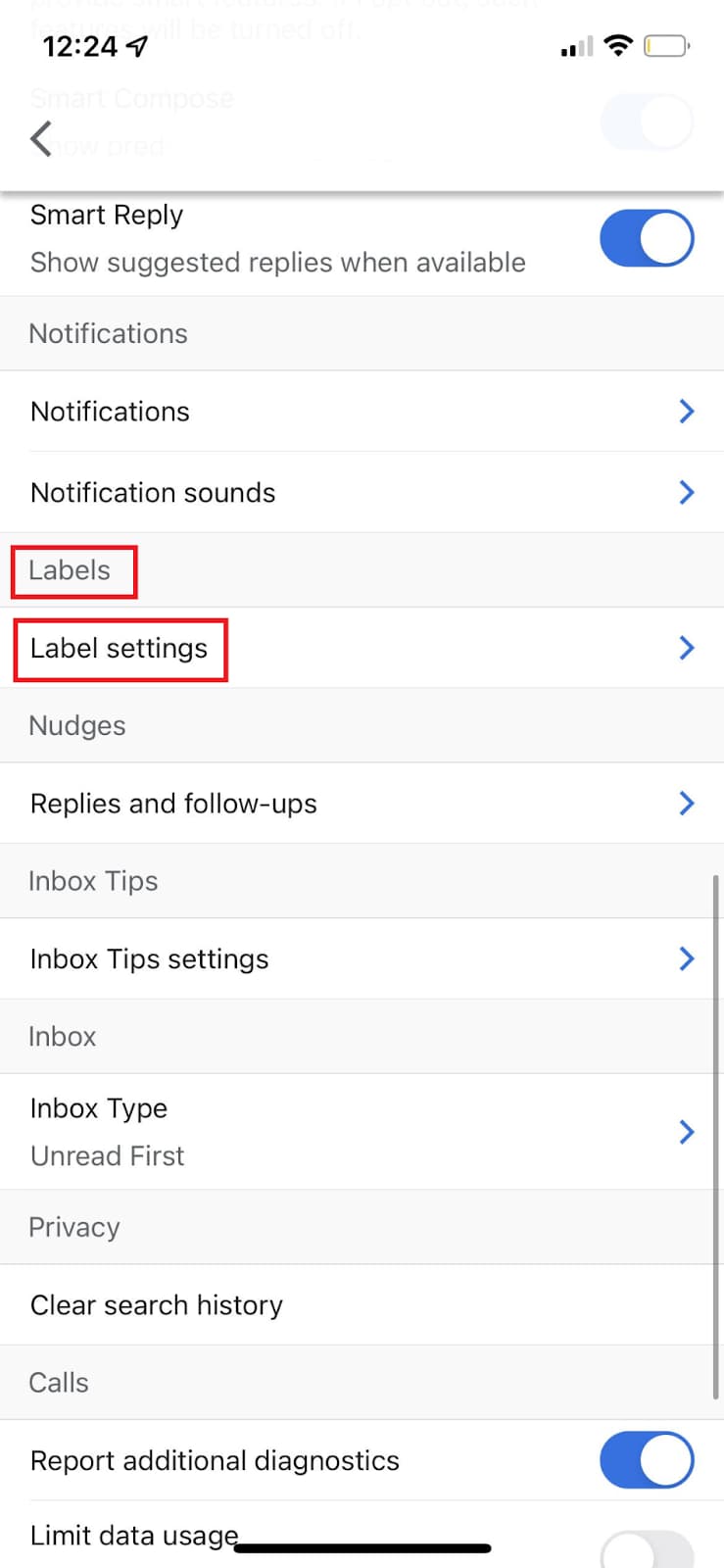
Step 4: Open the Gmail label settings
Once you're in the account settings, scroll down until you see the "Labels settings" option and tap on it. This will bring up a list of all the labels associated with your Gmail account.
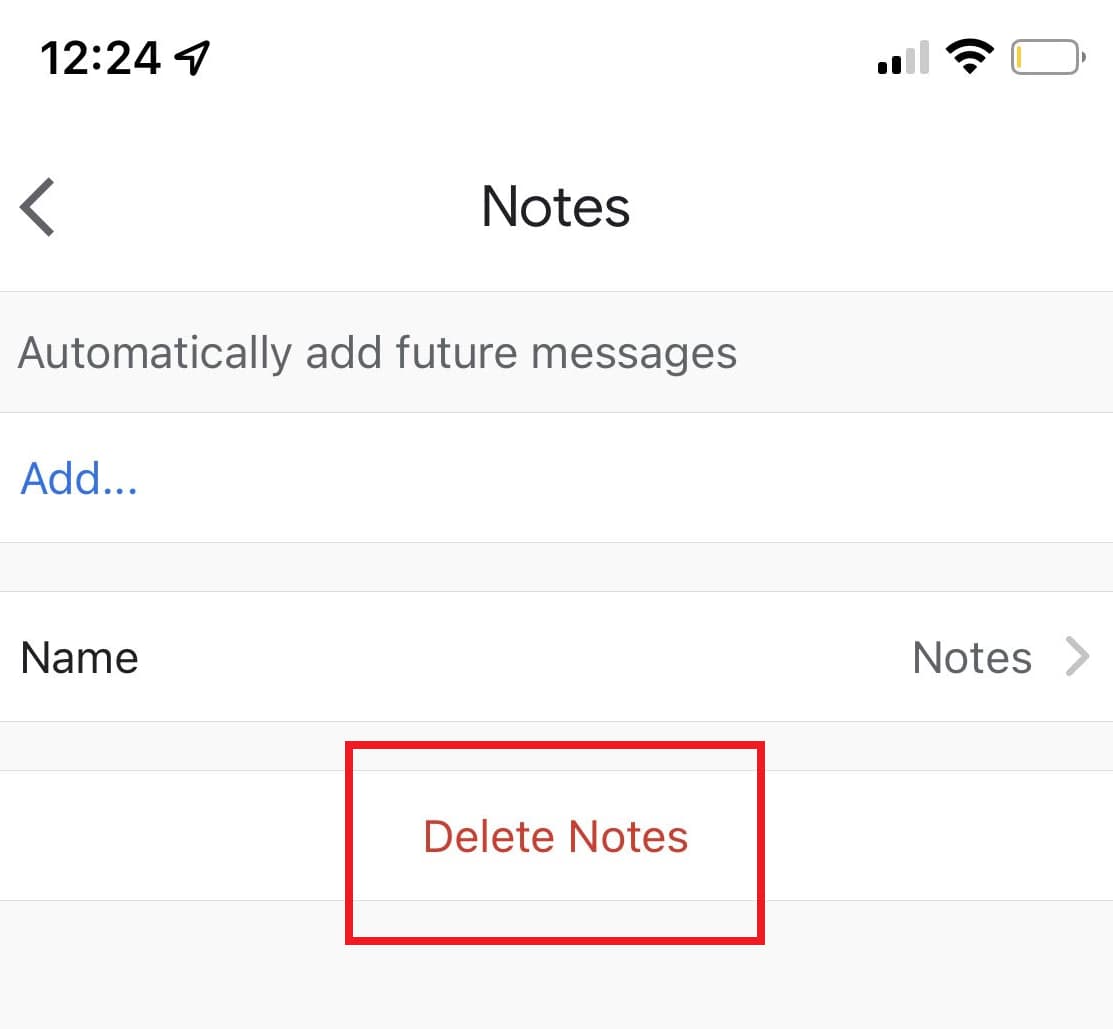
Step 5: Delete the Gmail label you want to
To delete a label, simply click on the arrow next to it and tap on the "Delete" button. This will remove the label from your Gmail account.
And that's how you delete Gmail labels on your iPhone! As you can see, it's a pretty simple process. So, if you're looking for an easy way to manage your labels, this is the method for you.
Now you know how to manage and delete labels in Gmail
Whether you need to get rid of an old label or want to clear out your Gmail for a fresh start, deleting labels is easy to do. Follow the steps above to manage labels in Gmail on your computer, Android device, or iPhone and you'll have no trouble removing labels from your Gmail account.
So, go ahead and give it a try!