How to Remove a Signature from Gmail
4 min read

Table of contents
Tired of the signature you set up in your Gmail ages ago? Do you feel compelled to delete that signature manually every time you send a message? Or do you just want to delete an old signature from a former job?
Whatever the reason, this guide will cover how to remove a signature from Gmail. We’ll show you how to remove a signature from an email temporarily, and then we’ll show how to delete a signature from Gmail once and for all. Let’s go!
How to remove Gmail signature from an email
If you’d like to just remove a signature from a single email, follow these steps.
Step 1: Compose a new email
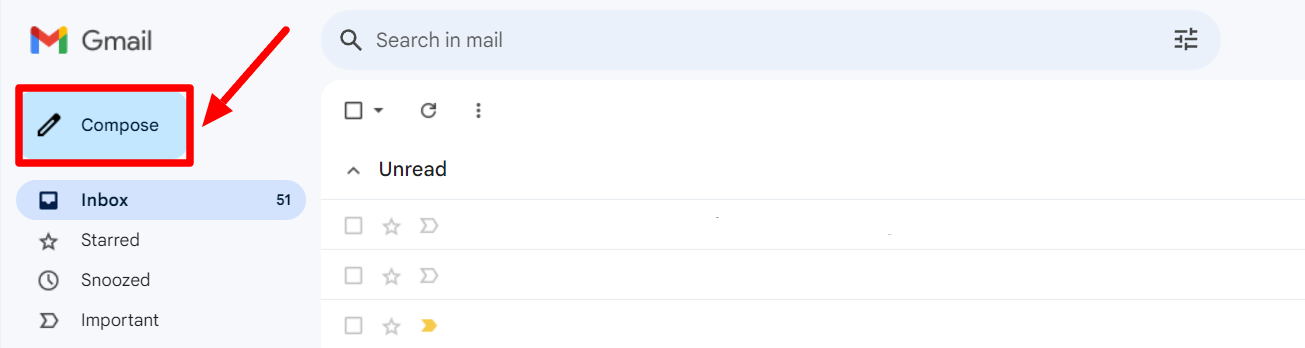
Navigate to your Gmail. Click the “Compose” button on your Gmail Inbox page to compose a new message.
Step 2: Click “Insert signature”
A new message window will now open. The window will open with signatures inserted if you have signatures set up.
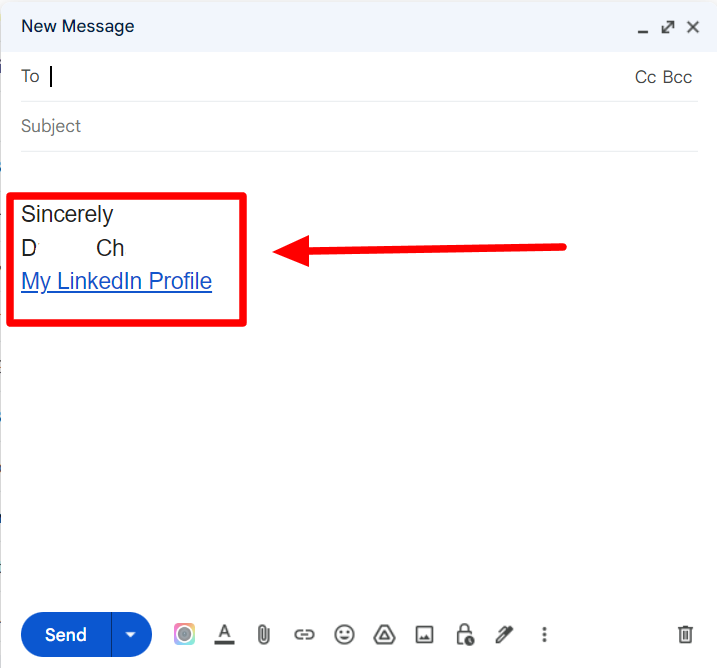
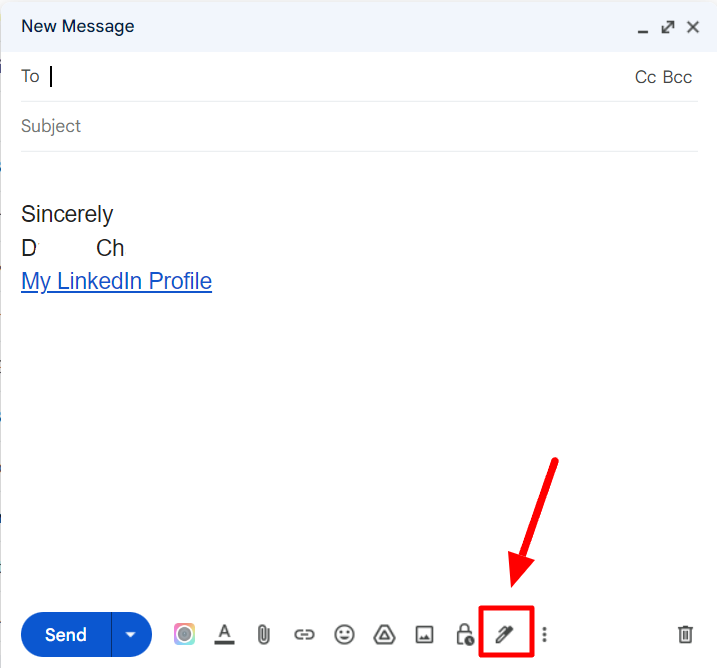
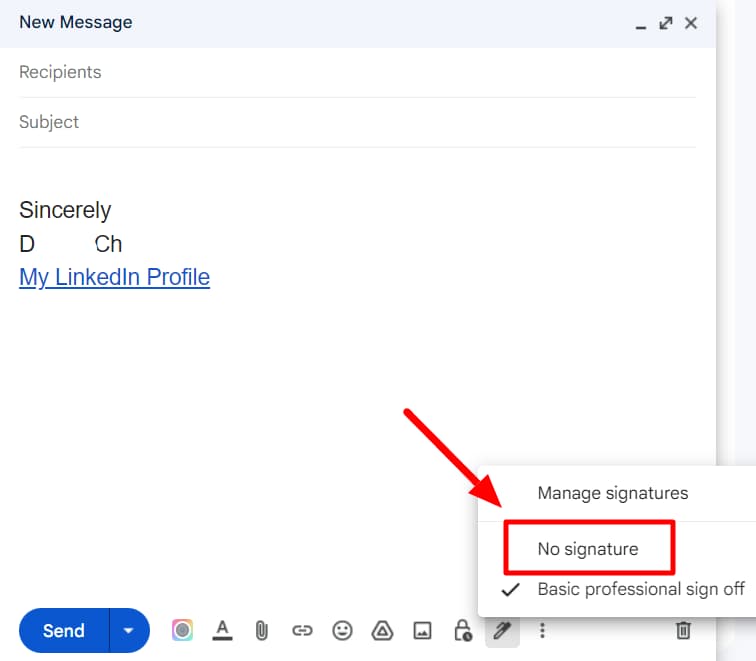
Click on the “Insert Signature” button at the bottom of the window. It looks like a pen.
Step 3: Click “No signature”
A pop-up menu will open up. Now click the “No signature” button to remove the signature from your message. You can, of course, also select the signature and delete it manually.
How to remove email signature from Gmail completely
So, that’s how you remove signatures before composing a new message. The issue with relying on this method is that it’s only helpful if you want to remove the signature once, as it will appear again when you click the “Compose” button. Fortunately, there’s a way to remove your email signature from Gmail for good.
Step 1: Open Gmail settings
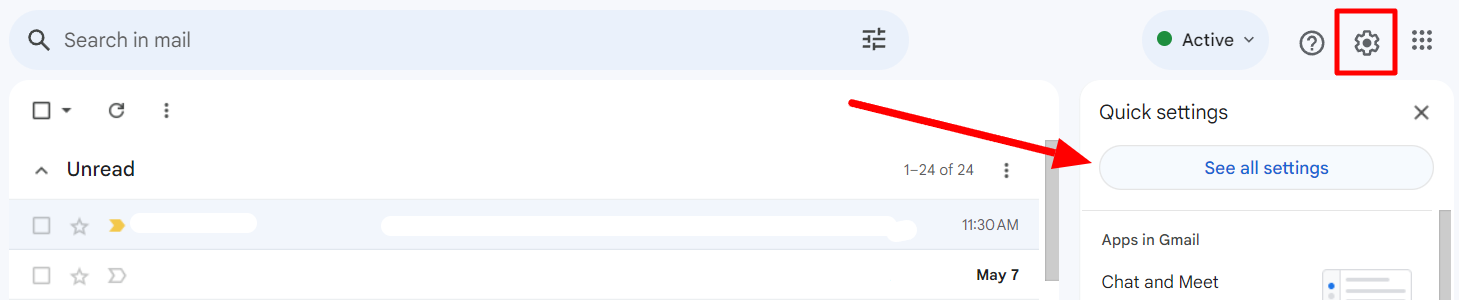
In your Gmail window, click the “Settings” button (gear icon) in the top right corner. This will open quick settings. Now click “See all settings” to open your full settings menu.
Step 2: Scroll down to signature settings
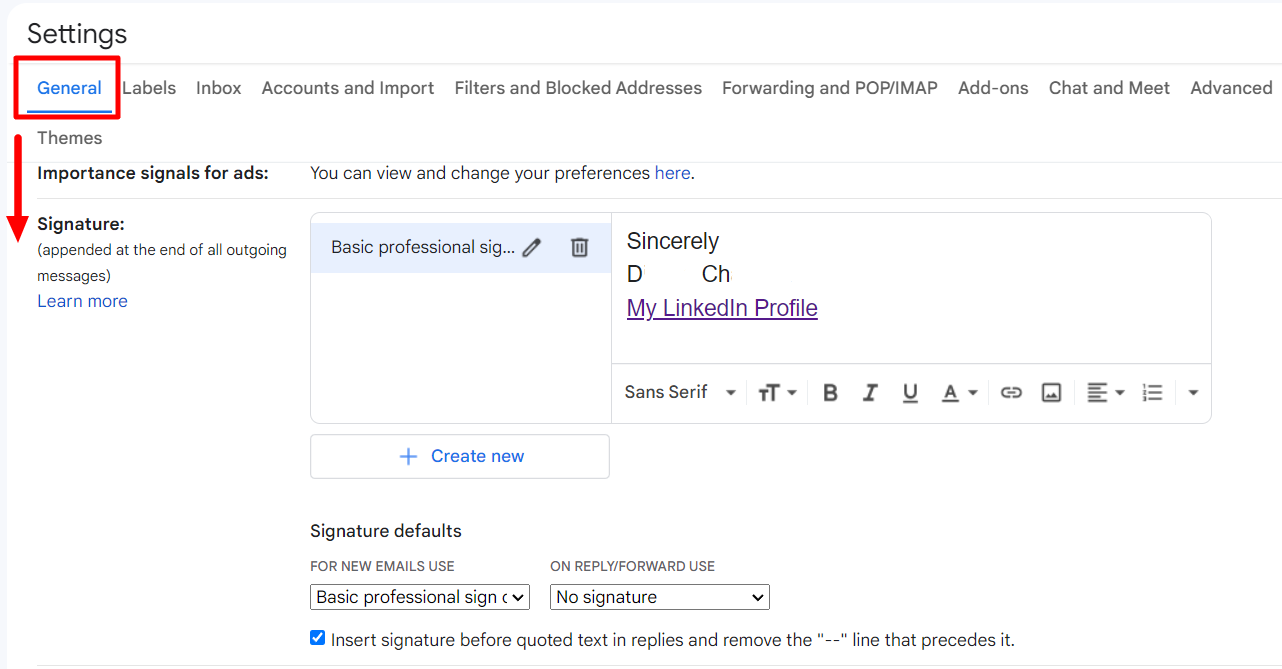
Scroll down to the “Signature” settings under the “General” tab of the Settings.
Step 3: Click the trash icon next to the signature
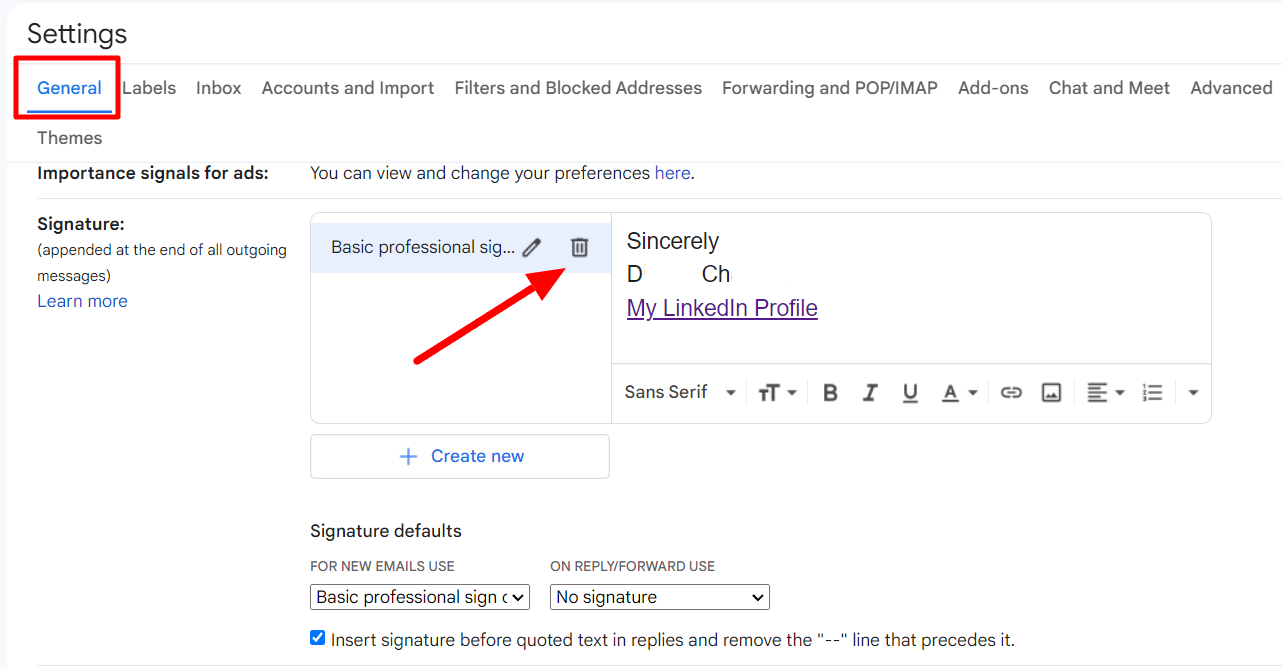
Here, you’ll be able to see all your signatures and the defaults you have set up for them. Click the “Delete” button (trash can) next to the signature name to delete it permanently.
Gmail will ask you for confirmation for deleting the signature. Click “Delete” here.
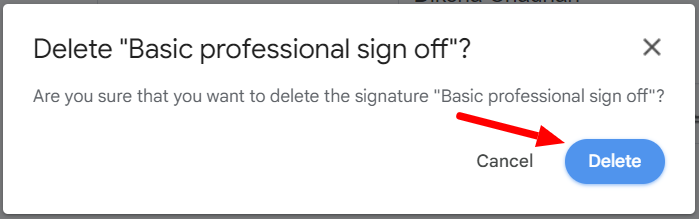
That’s it! When composing a message, you’ll never see the signature appear in a new message window. While in your settings, you can add a new signature to your Gmail, too, if you’d like.
How to change your signature default settings
Rather than deleting your signature permanently, consider changing the default signature settings. Doing this will ensure you don’t see the signature every time. In fact, you’ll retain it in your Gmail account in case you want to use it in the future.
Here’s what to do. In the settings at the bottom of the signature, you’ll find the “Signature defaults.”
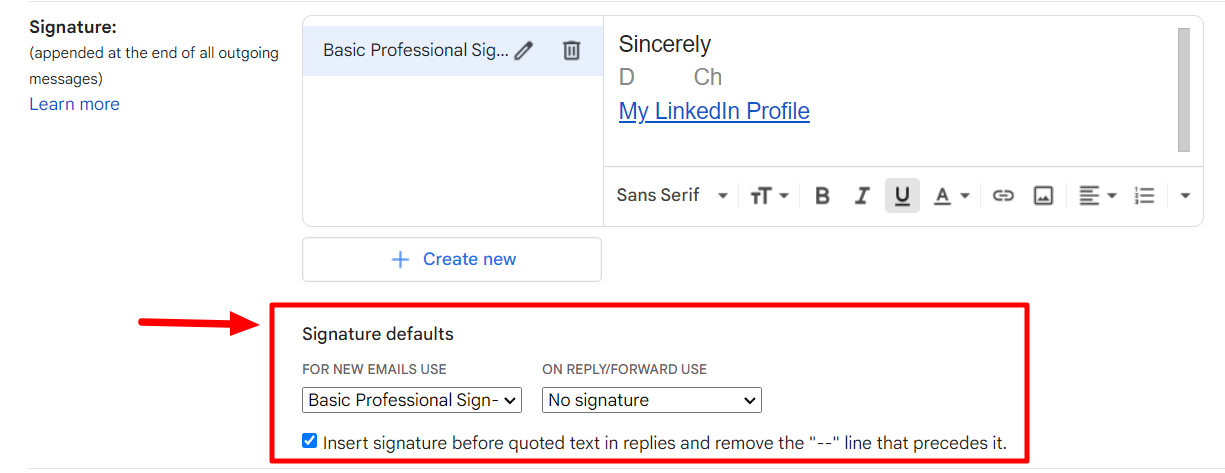
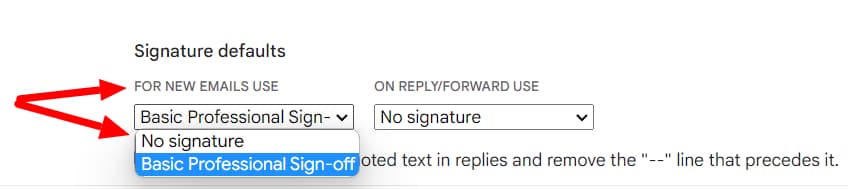
The first signature default setting is for new email use. Click on the drop-down menu and select “No signature.” Selecting this means you don’t want a signature for new email use.
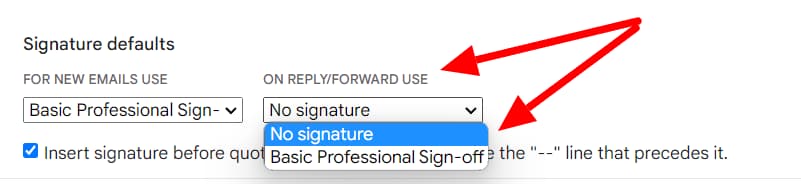
The next setting is for when you’re replying to emails or forwarding them. Click on the drop-down menu and select “No signature” here too. Now scroll down to the bottom of the page and click “Save settings.” and that’s it! Now you’ve kept your signature in Gmail, but they won’t keep showing up when you’re composing or replying to emails.
Learn more about what you can do on Gmail with the YAMM blog
So, that’s how you sort out your signature in Gmail! We covered how to remove a signature from Gmail temporarily, how to do so permanently, and how to change your default signature settings.
Gmail is an incredibly powerful platform already designed to enhance productivity. By knowing little tricks and hacks, you can take your Gmail experience and productivity to the next level. If you’re interested in learning about more interesting things you can do with Gmail, head on over to the YAMM blog!