How to Send Personalized Mass Emails in Gmail
5 min read
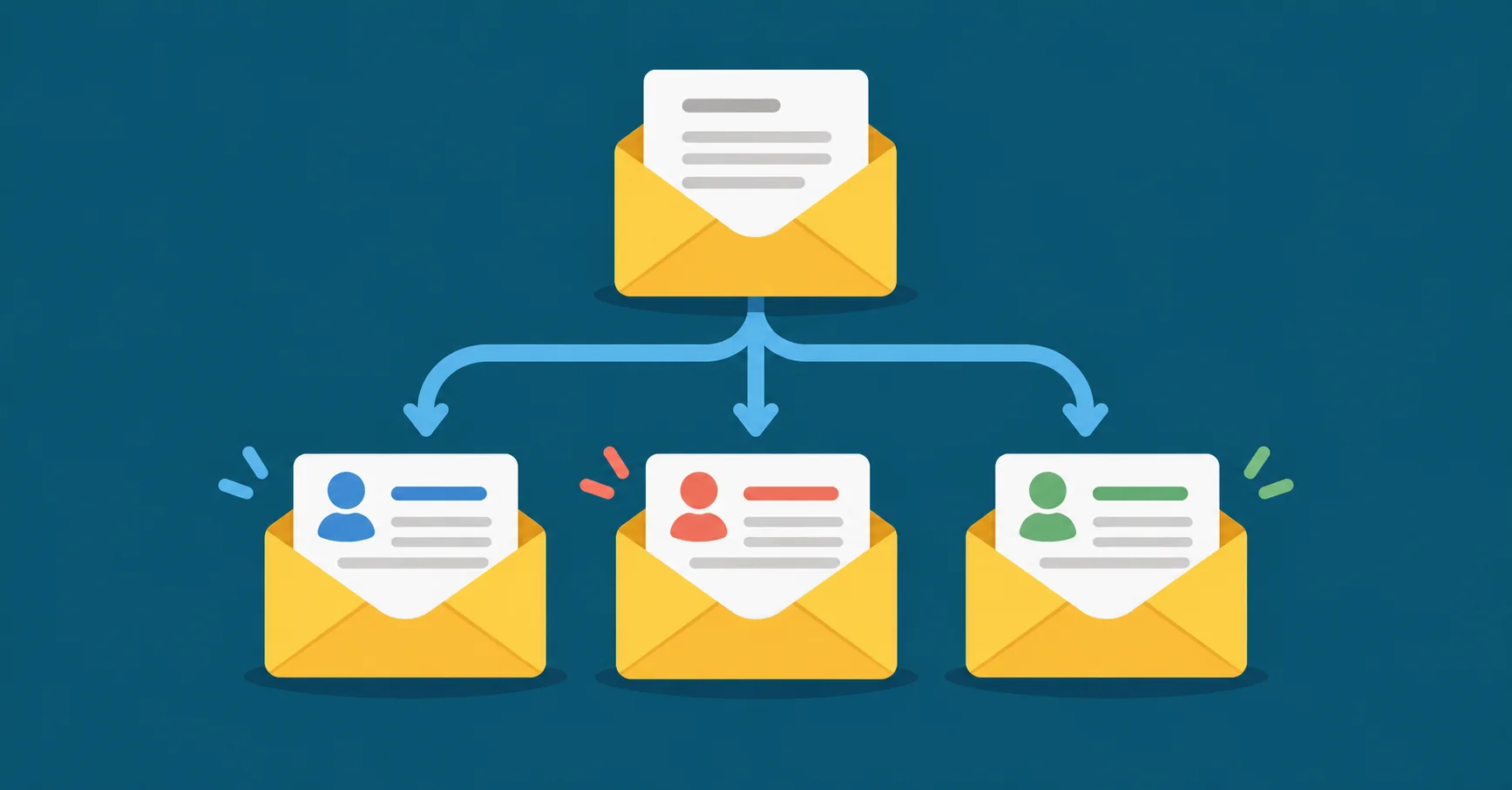
Table of contents
Mass emails suffer from a common problem of becoming too generic and templated over time. Then, they start losing their impact. The solution is to personalize them. When your recipients read their name or some other thoughtful inserted detail about them in the email, your message is bound to resonate.
In this blog post, we’ll delve into the practical steps and tools you need to send personalized mass emails using Gmail. Ready? Let’s get into it!
How to send personalized mass emails with Gmail
Marketers, small business owners, and solopreneurs all like to work with Gmail. There’s a good reason behind it, too. Sending mass emails through Gmail is easy and efficient, not to mention affordable. The only issue is that Google Workspace subscriptions offer limited personalization features.
This is why we will be working with YAMM to combine the ease and efficiency of Gmail and the power of personalization. Here are the steps:
Step 1: Download YAMM
The first thing to do is download and install YAMM (Yet Another Mail Merge). YAMM is a mail merge too, which allows you to take a templated message, personalize it, and send it to multiple recipients at once. Once you have YAMM, you essentially need two more things to make this happen:
- An email draft
- A contact list of recipients in Google Sheets
Once you have these in place, YAMM does the rest of the job. Let’s move on to the next step of creating an email draft.
Step 2: Create an email draft with markers
Navigate to your Gmail, then click the ‘Compose’ button to create a new message.
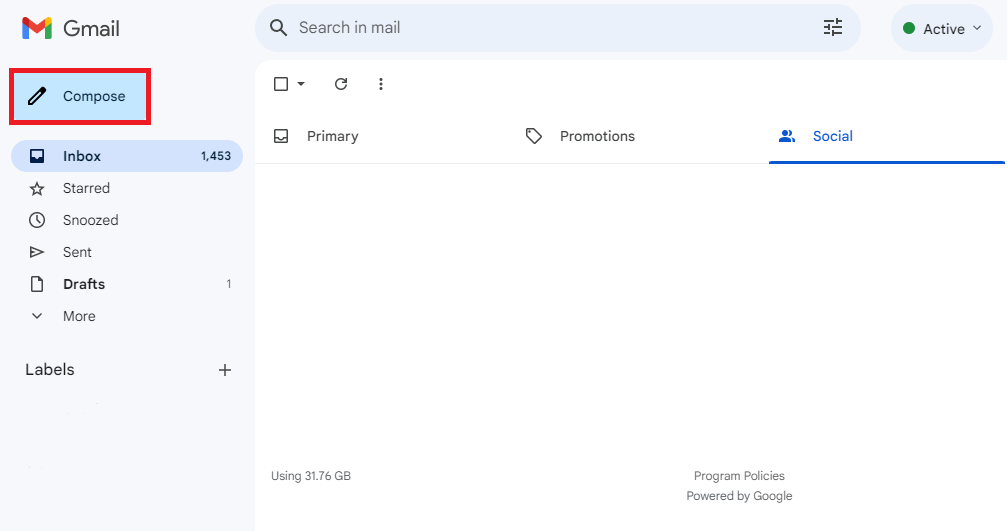
When the new message window pops up, you can start crafting your message.
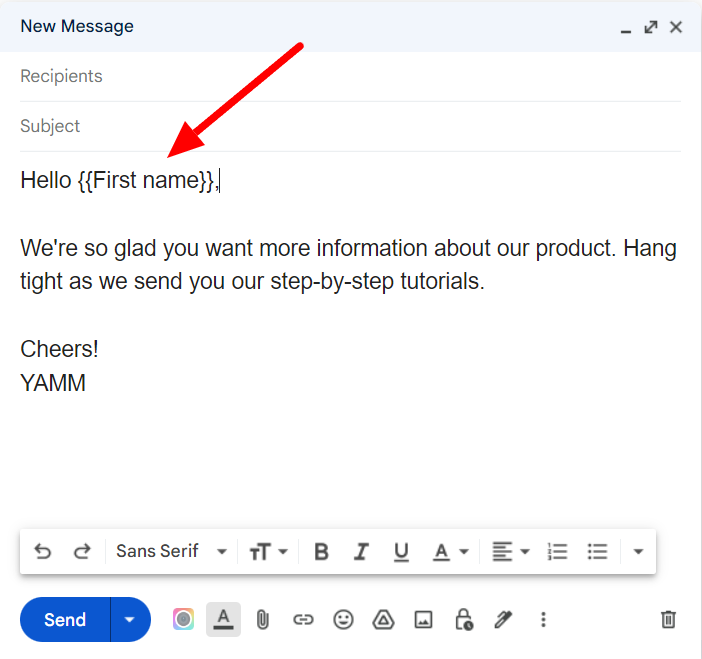
The thing to remember is that wherever you want YAMM to personalize the message, you leave a placeholder within double curly brackets. Whatever you place within the curly brackets is essentially a category. YAMM will extract the specifics from Google Sheets columns and insert them in before sending the message. It's time to save this message as a template.
Once you ensure the draft is saved, you can click out of the composing window. It will be housed in your Drafts folder, and you’ll be able to find it later when you initiate the mail merge.
Read a detailed tutorial on how to create a template in Gmail.
Step 3: Create a contact list in Google Sheets
Let’s move on to creating the next element that YAMM needs for a mail merge: the contact sheet.
Navigate to your Google Sheets.
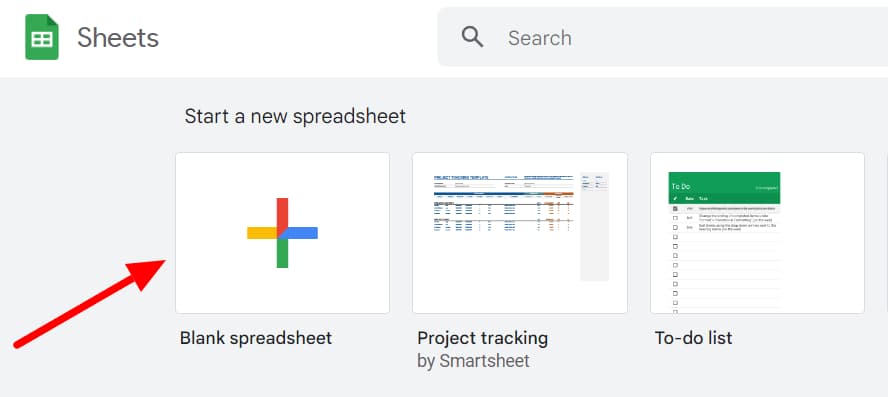
Click on the ‘Blank spreadsheet’ to start a new spreadsheet.
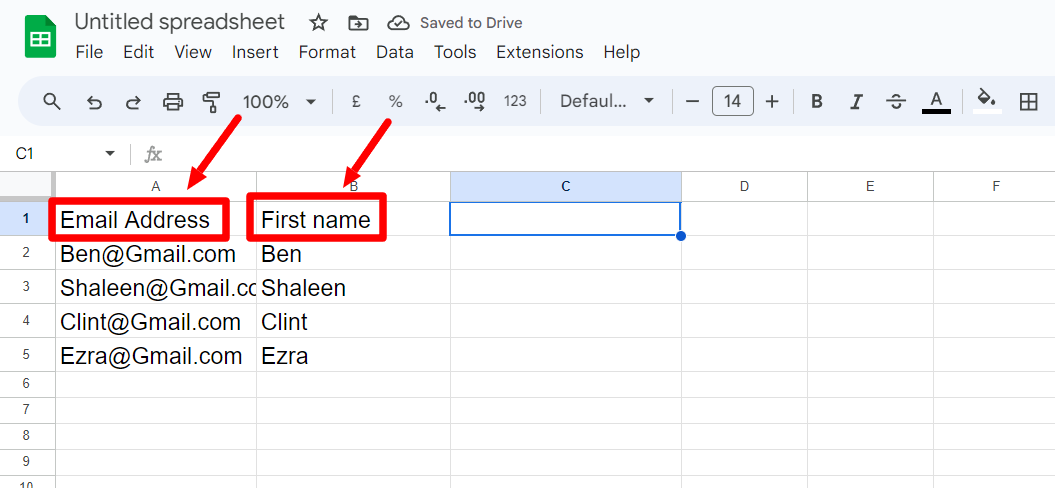
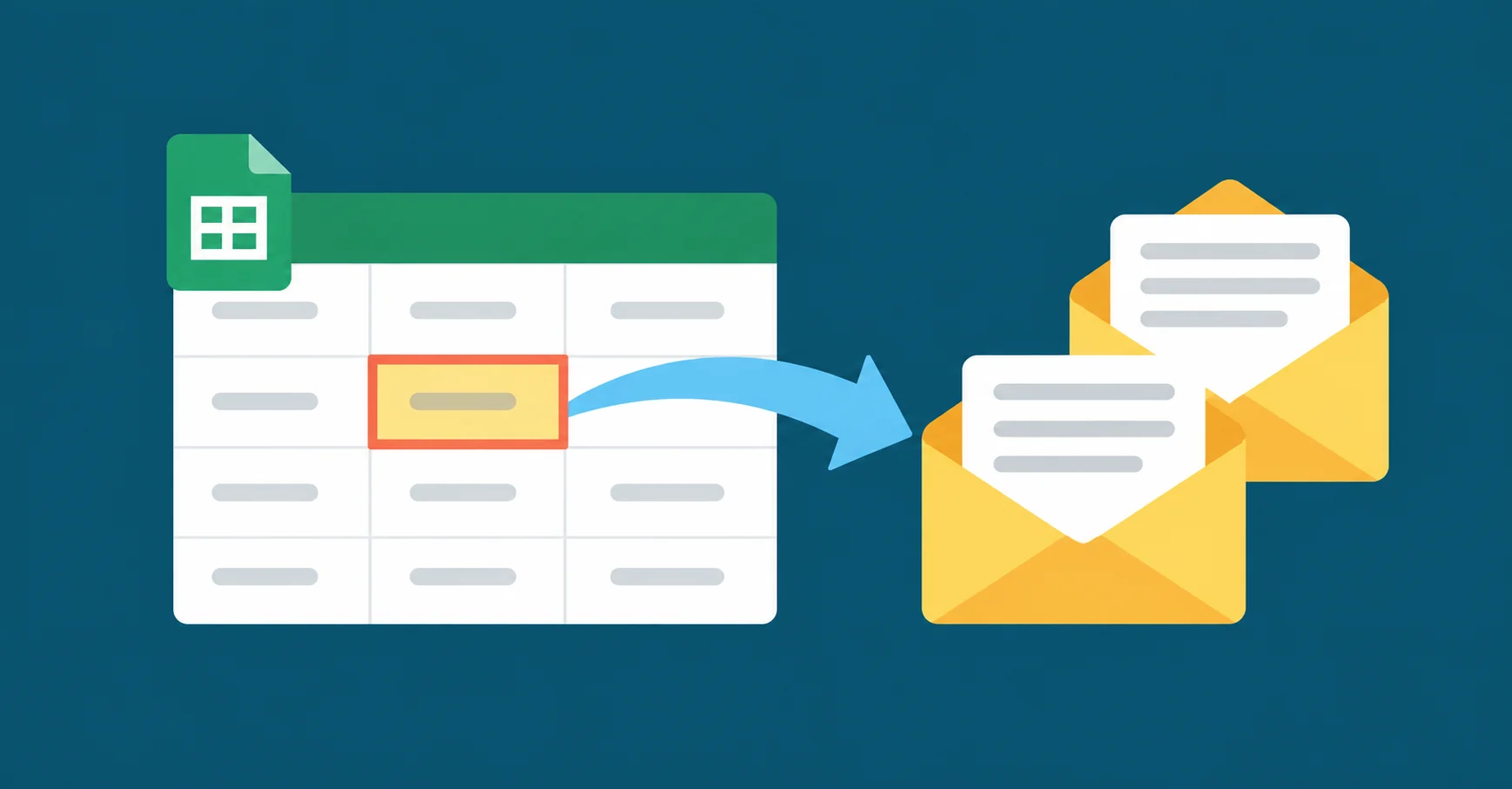
Enter your recipients' email addresses and the details you want to personalize in the contact sheet. In this case, it’s their first names. It’s important to take care of the following while creating a contact sheet for a mail merge:
- The email address should always be Column A.
- Enter the category names exactly as they appear written within the curly brackets. For example, since we inserted ‘First name’ for personalization in the template, that’s exactly how we’ll name it here.
- Every personalization detail should be in a separate cell. For example, if you wanted to insert the recipient’s unique mobile numbers, they should be in the column next to their respective names.
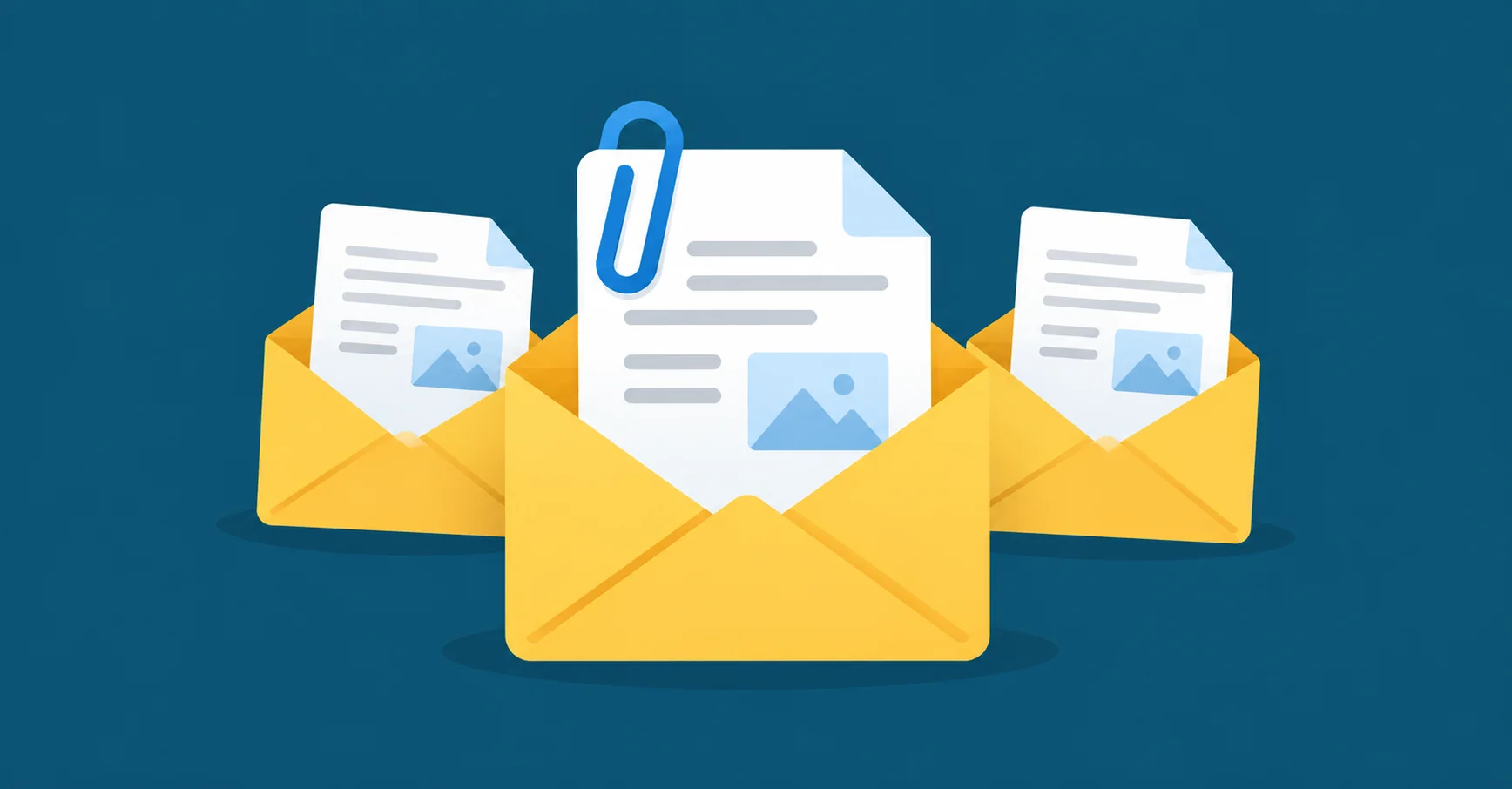
- If you want to include personalized attachments, you can do that, too. Simply list the URLs of the individual attachments in a separate column in your contact sheet. Learn how to attach personalized attachments.
With that, you’ve successfully put in place the two elements of a mail merge. Now, it’s time to combine them with YAMM.
Step 4: Send personalized emails to contacts
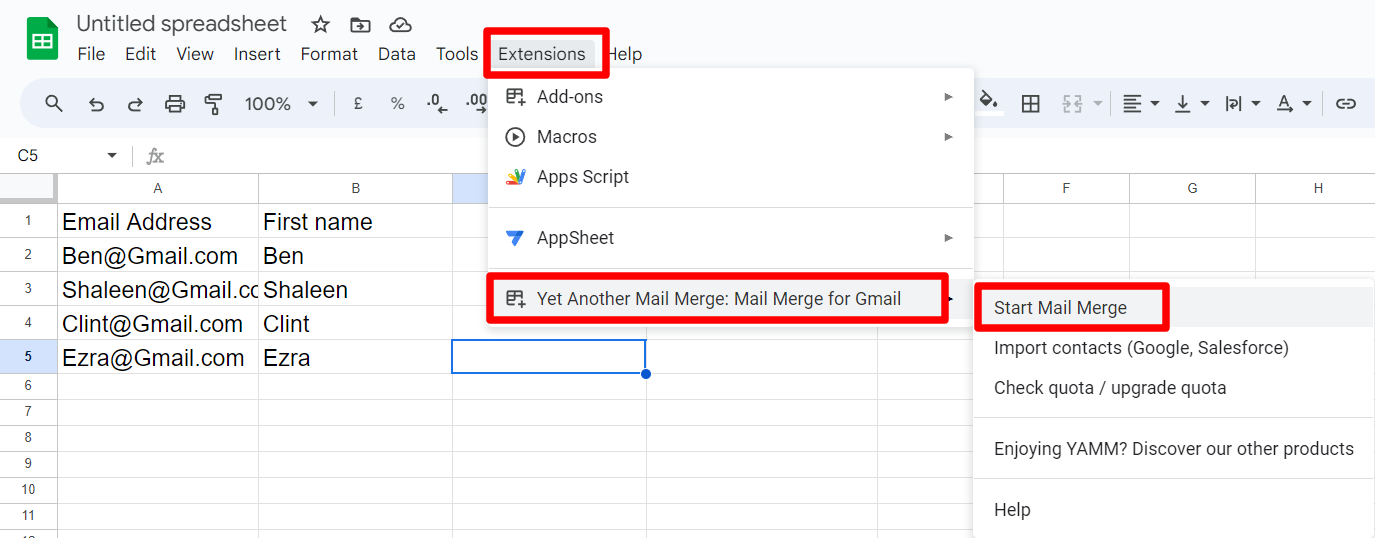
Click on ‘Extensions’ in the contact sheet menu. If you’ve successfully installed YAMM, it’ll appear in your list of extensions. Click ‘Yet Another Mail Merge,’ then click ‘Start Mail Merge.’
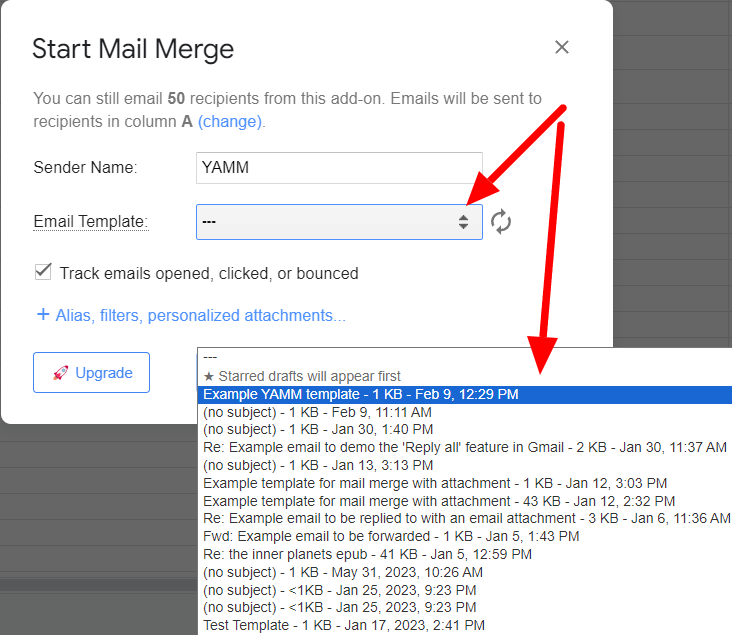
In the new window that pops up, click on the drop-down button in the ‘Email Template’ field. Select the template that you created in the earlier step.
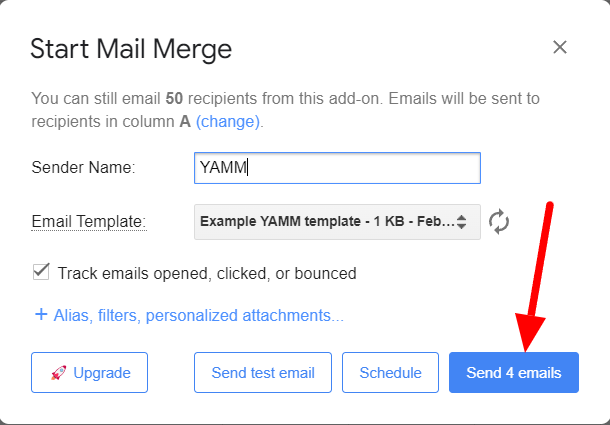
If needed, edit the ‘Sender Name’, then click the ‘Send emails’ button. With that, you’re done!
You can also ‘Send test emails’ before sending the actual emails to see how your emails appear to your recipients. Read a detailed guide about how to send a mail merge in Gmail.
What is Yet Another Mail Merge (YAMM)?
Gmail is a powerful platform that can do a lot, but YAMM is a Gmail add-on that enhances the capabilities of the Gmail platform. Here are things that you can do with YAMM that you can’t do if you’re solely working with Gmail:
- Personalize messages easily
- Track the success of your campaigns with real-time metrics
- Easily integrate Gmail and Google Sheets data
- Personalize your attachments along with emails
- Create stunning emails in minutes with YAMM templates
- Segment contacts with filters in Google Sheets
- Add an ‘Unsubscribe’ button needed for compliance with email delivery rules
- Send bulk messages that don’t end up in the spam folder
YAMM allows you to work with Gmail while giving you that extra edge. It’s for people who love Gmail but want a little bit more from it.
Send personalized mass email in Gmail with YAMM
With YAMM, sending personalized mass emails in Gmail becomes effortless. This add-on allows you to merge Gmail and Google Sheets data directly into your emails, enabling a level of personalization that's beyond Gmail's native capabilities. If you’re sending mass emails, give YAMM a shot. It's free to get started!