How to Block Emails in Gmail on Desktop and Mobile
Updated 7 min read
Table of contents
If you’re getting especially tired of receiving marketing emails from a particular sender, then blocking them could be the right strategy.
Not sure how to get started? We’ve got you covered. Keep reading to learn how to block someone on Gmail and the most important factors to consider when doing so.
An overview of blocking on Gmail email
The process of blocking someone on Gmail is thankfully pretty simple. We’ll give you more detail in later sections, but here’s an overview of the process:
- Open an email from the unwanted sender.
- Open More beside Reply within the message.
- Select Block followed by the sender’s name.
- If prompted, select Block to confirm.
How to block a person on Gmail on Desktop
Step 1: Open an email from the sender you want to block
To block a sender on Gmail, start the process by opening one of the emails that you’ve received from them and that you no longer want to see in your inbox.
Step 2: Open More beside Reply and select Block
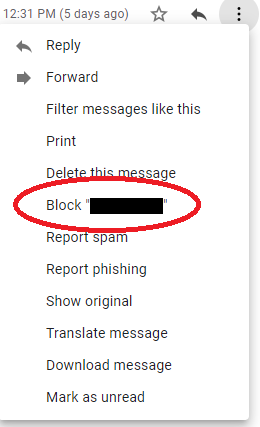
In the open message, find More beside the Reply button. This is the message’s menu, not the menu for your inbox.
Open More and select Block followed by the sender’s name.
Step 3: Confirm the action if prompted
If Gmail asks you to confirm, select Block.
That’s it! You’ve successfully blocked the person or company on Gmail.
They’re still free to send you messages. Gmail sends future messages from the blocked address to Spam instead of your inbox.
How to block someone on Gmail on phone
The following steps work in the Gmail app on Android, iPhone, and iPad.
Step 1: Open up the Gmail app
Make sure to open up the Gmail app specifically – not a general mail app like the “Mail” app that many people use on their iPhones.
If you use a generic app instead of the Gmail app to access your email on mobile, then the instructions for blocking are going to be slightly different from the ones we’re providing here.
Step 2: Open up the unwanted email
Once you’ve opened up Gmail, tap on the email from the unwanted sender to bring it up on your screen.
Step 3: Tap More beside Reply and select Block
On Android, iPhone, or iPad, open the sender’s message and tap More beside Reply within that message.
Select Block followed by the sender’s name.
Step 4: Confirm your decision if prompted
If Gmail asks you to confirm, select Block.
How to unblock a person on Gmail
After you’ve gone through the process of blocking someone, you may decide that you want to begin seeing some of their emails after all.
If so, you’ll need to know how to unblock a person on Gmail before being able to do so.
The process for this is exactly the same as it is for blocking someone on Gmail – regardless of whether you’re on a desktop device or a mobile phone.
Here’s how to do it:
- Open a message from the sender, for example from Spam.
- Open More beside Reply within the message.
- Select Unblock followed by the sender’s name.
- If prompted, confirm your selection.
Things to be careful of when blocking someone on Gmail
Blocking someone on Gmail is an excellent way to clear up your inbox and save yourself time. However, there are a few potential pitfalls that you’ll want to avoid.
Here are three things to be careful of:
Forgetting to confirm your decision to block someone on Gmail
If Gmail displays a confirmation after you select Block, complete it before leaving the message.
Closing that confirmation without selecting Block leaves the action incomplete.
You only need to confirm when Gmail prompts you to do so.
Senders with multiple email addresses
Another thing to keep in mind is that some senders will share emails from more than one account. That means even if you block one of their addresses, your inbox may continue getting spammed with their messages.
Thankfully, there’s a workaround. You can fix this problem by creating a filtering rule for all addresses that share the same domain name.
We put together an article that gives a detailed look at how to do this, but here’s a quick overview of the process:
- Pull up your inbox and check the box next to one of the emails that you’ve received from the unwanted sender
- Click on the three horizontal dots at the top of your inbox and select “filter messages like these”
- When the menu pops up, the information will auto-populate with the email address that you’ve selected. You’ll want to add any other variations of the email address that you’ve also received emails from.
- Once you’ve gathered all the unwanted email addresses, click on “create filter” and choose an action like “delete it” from the menu that appears.
That’s it – you’ve successfully blocked each variation of an unwanted sender’s email address from making it into your inbox.
Is mute the same as block on Gmail?
If you find yourself asking “Is mute the same as block on Gmail” then you’re one of many people who confuse the two. In short, the answer is no.
When you bring up the dropdown menu after clicking on the three dots, you’ll see an option that says “mute”.
When you click on mute, you’re only making sure that any additional messages in that thread no longer show up in your inbox. You’re not blocking the user from creating new email chains by sending you more standalone messages.
If you want future messages from a particular address to go to Spam, use Block. Muting applies to a conversation rather than every new message from that sender.
Is unsubscribing the same as blocking?
When the option is available, Gmail displays Unsubscribe beside the sender’s name. Select it, then follow the Unsubscribe or Go to website prompt.
Unsubscribing asks the sender to remove you from a mailing list. It can take a few days to take effect, and may stop only that list rather than every mailing list from the sender.
If the company honors the request, messages from that list should stop after it processes your unsubscribe.
Blocking routes future messages from an address to Spam. Unsubscribing asks the sender to stop sending the selected mailing list.
Just note that unsubscribing from a sender doesn’t actually block the address that you’ve been getting emails from. So a non-reputable company could ignore your request to come off of their email list and continue sending you unwanted emails.
If that happens, then the best solution is to block the email address using one of the methods shown above.
What if you can’t unsubscribe?
Sometimes, you won’t see the unsubscribe option appear at the top of a mass email for whatever reason. Don’t worry if that happens to you, the solution is to block them using one of the strategies shown above.
That being said, this will stop all emails from the sender from getting to your inbox, which is a step you may or may not want to take.
If you’d still like to receive some emails from the user and unsubscribing doesn’t work, then you may need to create a special rule for that address.
For example, you could set up a rule that only sends marketing emails from a user to your junk box by filtering out certain keywords.
Avoid getting blocked on Gmail with YAMM
All of this talk about blocking might be sounding a little worrying if you send out marketing emails yourself!
Before you panic, personalizing your mass emails while sending out content that users find truly valuable can help you bring down your block rate considerably.
YAMM’s mail merge add-on for Gmail makes that a lot easier to do. With YAMM, you can instantly personalize emails for your entire list without having to type them all out yourself – and plan your sending while you’re at it.
Plus, YAMM makes it easy to track the performance of your email marketing campaigns. That way, you can identify what’s not working for you and switch your strategy before getting blocked.
So why wait? You can get started with YAMM for free today.