How to Change Gmail Appearance to Fit Your Preferences
Updated 4 min read

Table of contents
Considering how much time everyone spends on email, it’s not surprising that you may want to customize Gmail’s appearance. Changing the theme in Gmail could also increase productivity as you align the inbox with your style.
In this post, we’ll show you how to change Gmail’s appearance to fit your preferences so you can get the most out of the platform. Ready? Let’s dive in!
How to change your Gmail theme
Step 1: Open quick settings

Once in your Gmail, click the gear icon in the top right corner to open the quick settings.
Step 2: Click “View all” under Themes
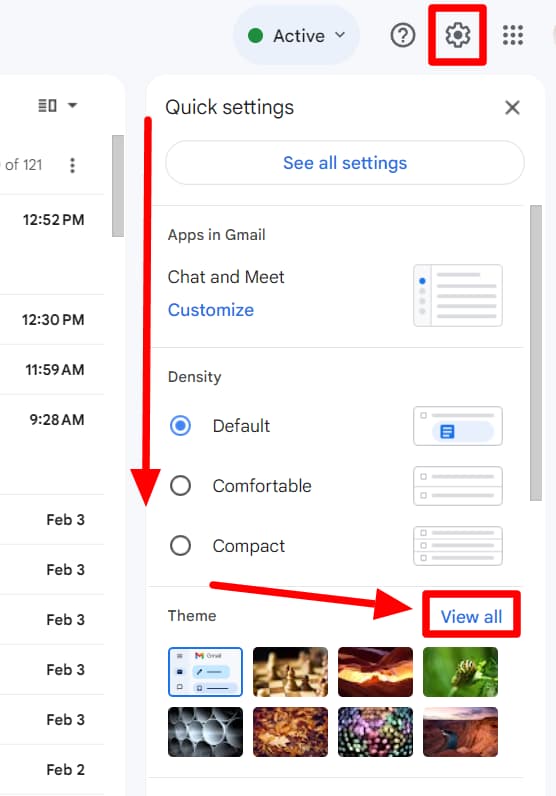
Under the quick settings, click ‘View all’ in the ‘Themes’ section.
Step 3: Pick your theme
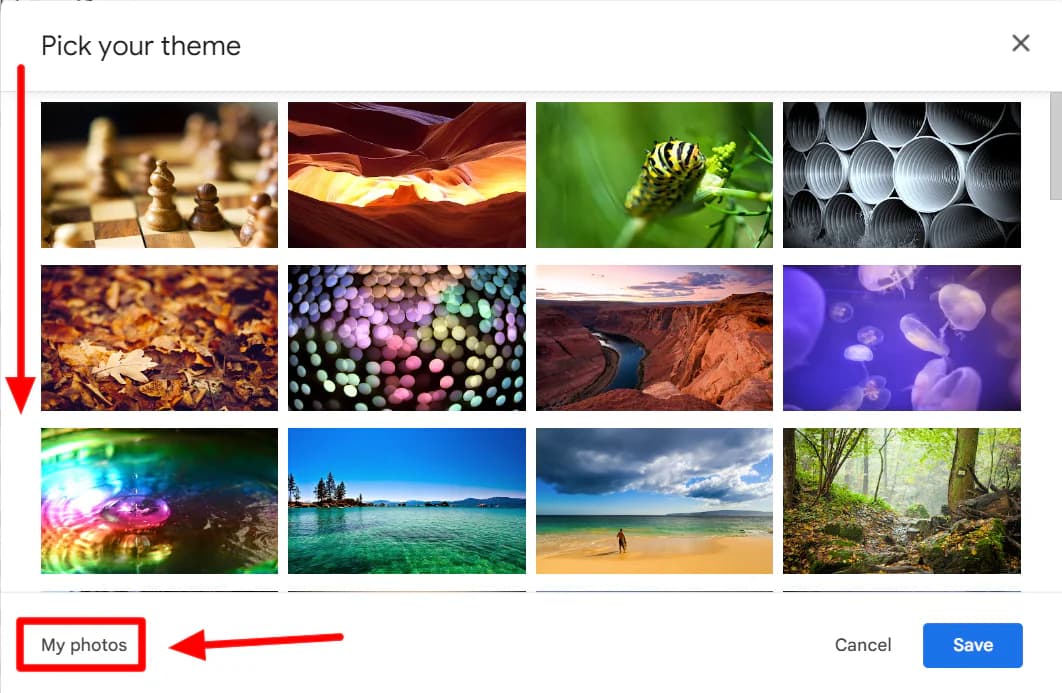
A new window containing all your different theme options will open up. Here, you can pick a pre-made Gmail theme or even click on ‘My photos’ to upload an image from your Google Images to be used as a Gmail theme. We’ll cover that in more detail in a separate section below.
Optional: How to change Gmail to dark mode
Gmail doesn’t have a dark mode for the desktop version.
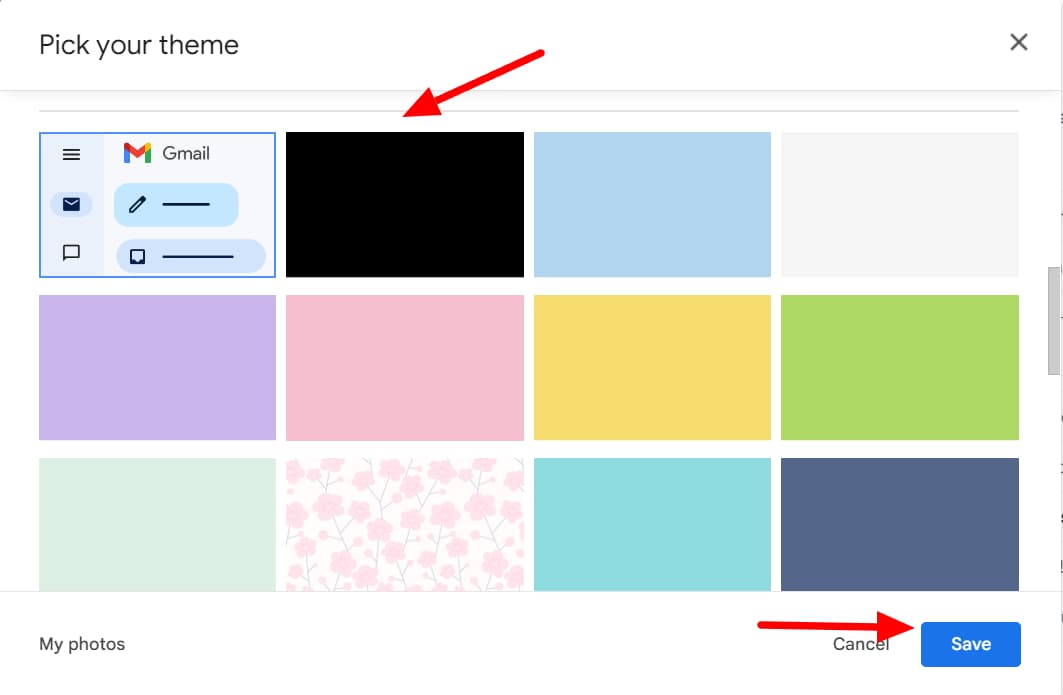
If you do want to apply a dark theme, though, you can simply click the black color to do so effectively.

Once you click ‘Save,’ your Gmail will appear like this.
Step 4: Change theme options
The theme collection in Gmail contains options to apply images as a theme, and if you scroll down further, you’ll be able to see some solid color themes as well. By default, Gmail applies themes in a manner that enhances readability. However, if you want to customize the themes a little more, there are options.
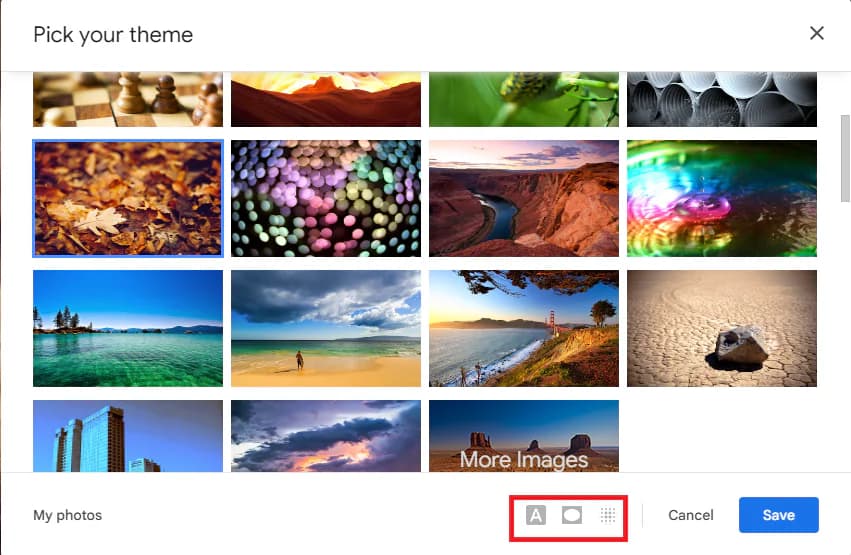
When you select an image theme, there are three buttons at the bottom: text background, vignette, and blur. Text background simply changes your text between light and dark. Vignette creates a blur effect around the edges of the image, while blur affects the entire image.
Step 5: Click “Save”
Whichever theme you pick, don’t forget to click ‘Save’ to apply your theme.
How to change Gmail theme with your own picture
If you want to use one of your own pictures from your Google images, you can do that, too. Here are the steps.
Step 1: View all themes again
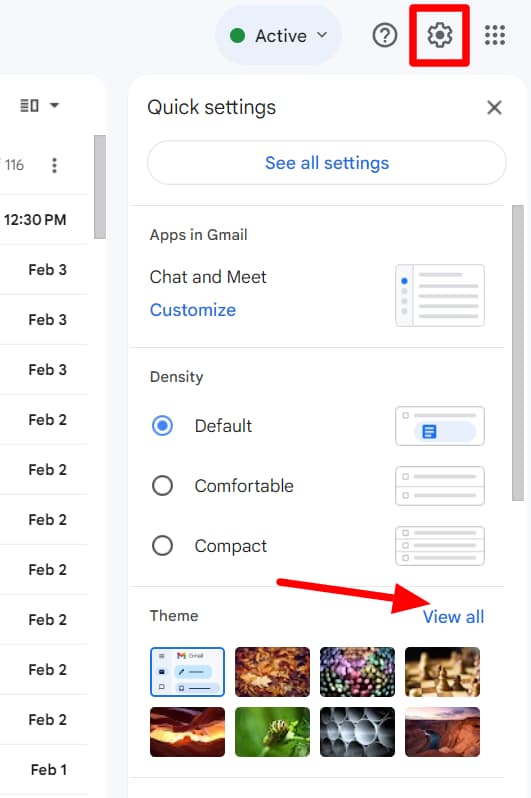
Click the gear icon to open up the quick settings, and then click the ‘View all’ button under ‘Themes.’
Step 2: Click “My photos”
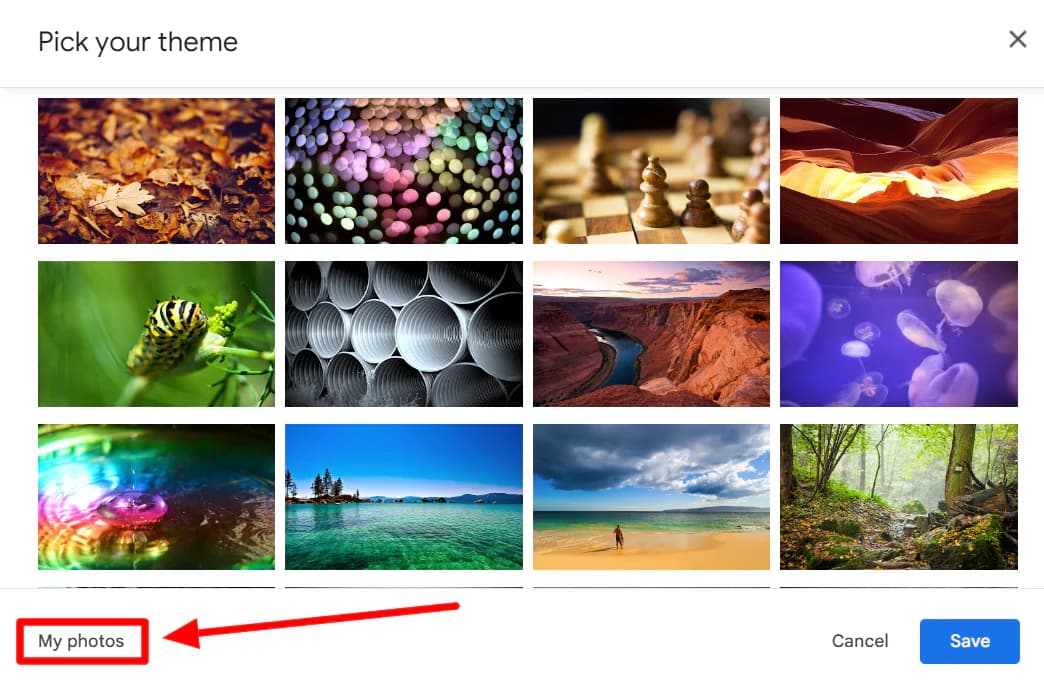
Click ‘My photos’ in the theme window.
Step 3: Pick your image and click “Select”
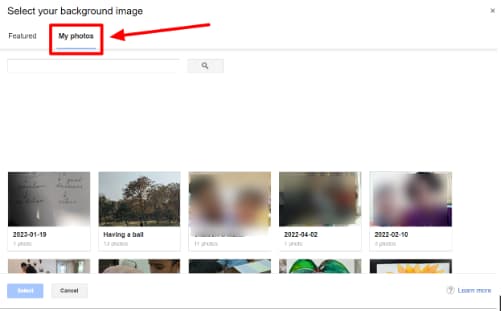
You’ll now be able to select an image from your Google Photos.
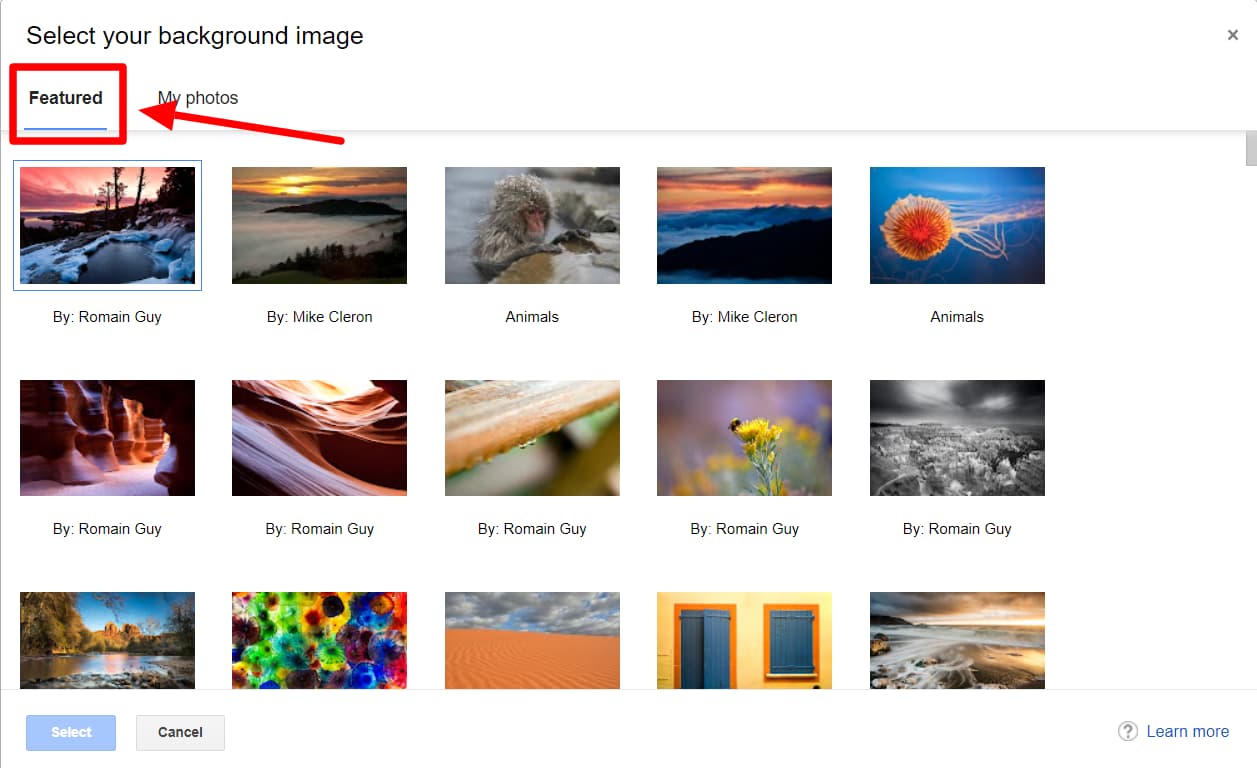
Additionally, you can also toggle over to the ‘Featured’ photo section to find another set of beautiful images you can use as your theme in Gmail. Simply click the image you want, and then click ‘Select.’ Once you save the changes, you will have successfully changed your Gmail theme and, in effect, drastically altered the appearance of your Gmail.
If you’re looking for more ways to customize Gmail to your preferences, you can change your Gmail design, modify the icons, and do much more. Gmail offers many ways to personalize your Gmail experience and organize your Gmail for ease and comfort. You can even change your font options!
See more Gmail tutorials on the YAMM blog
If you found that helpful, you can explore more Gmail tutorials on the YAMM blog to elevate your email proficiency. From productivity hacks to customization tips, our tutorials guide you through every facet of Gmail, ensuring you harness its full potential. Whether you're a seasoned user or a newcomer, you’ll find something useful on the YAMM blog!