
How to Transfer Outlook Emails to Gmail
Updated 3 min read
Table of contents
You may have signed up for Outlook, and then Gmail came along. Some of us still use those Outlook accounts and don’t want to stop simply because we like Gmail, too. This makes knowing how to transfer Outlook emails to Gmail a valuable skill.
This guide will walk you through the process step-by-step, ensuring a smooth transition of all your important messages. By the end, you’ll have all your emails in one place, so you don’t have to keep signing into two separate accounts. Let’s dive right in!
How to transfer emails from Outlook to Gmail
Step 1: Log in to Gmail account
Navigate to your Gmail and log into your account.
Step 2: Go to Settings

Click on the gear icon in the top right corner to open the settings. Then, click the ‘See all settings’ button below it to open the detailed settings panel.
Step 3: Go to the Accounts and Imports tab
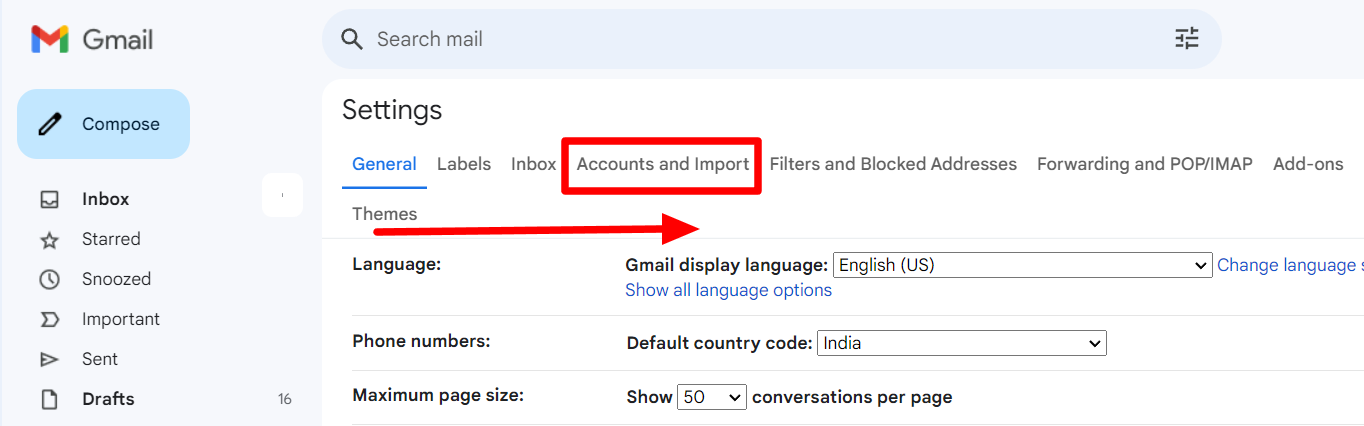
Toggle over to the ‘Accounts and Import’ tab from the General tab.
Step 4: Click “Import mail and contacts”
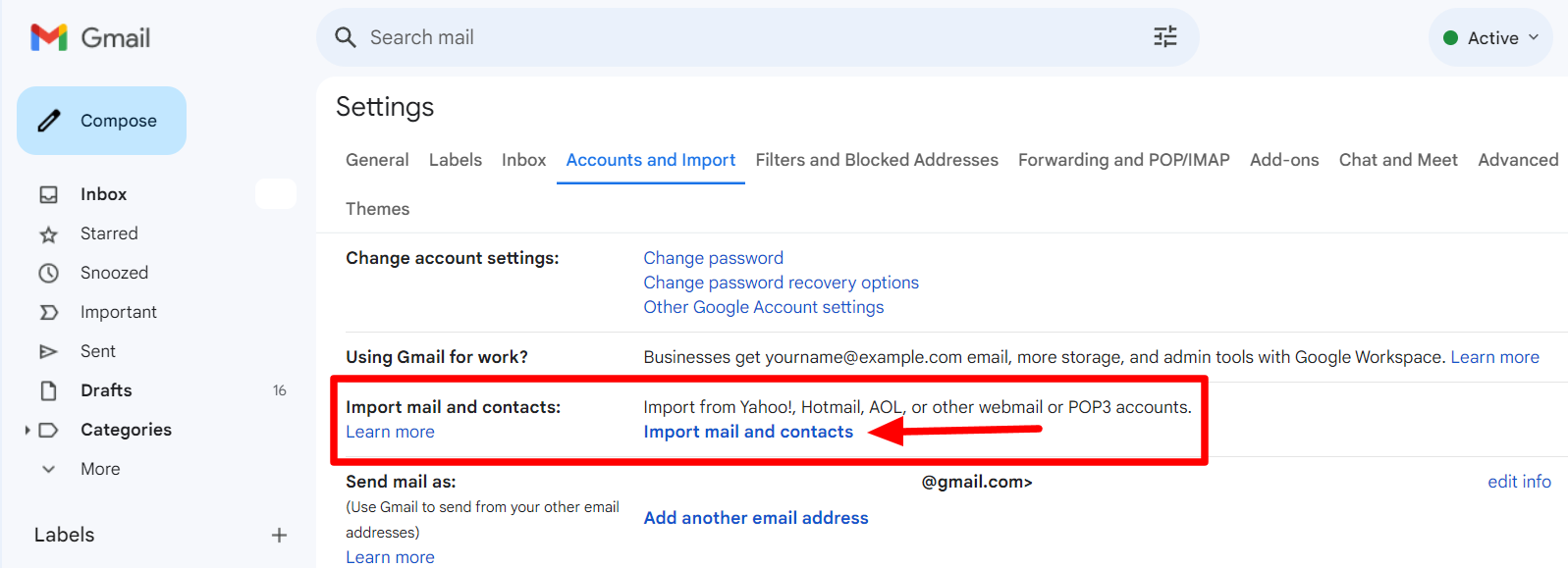
Click the “Import main and contacts’ button under the Accounts and Import tab.
Step 5: Enter your Outlook address
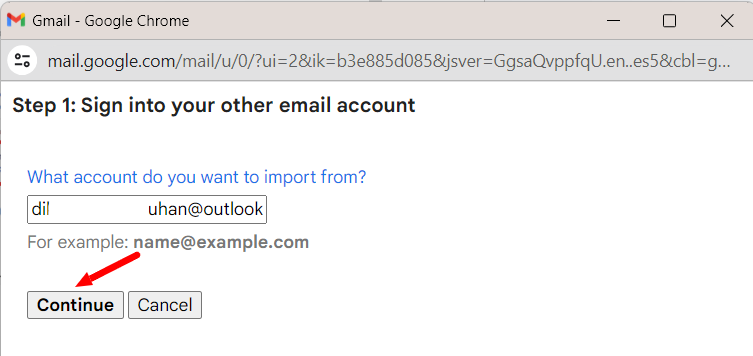
Input the Outlook email address from where you want to import the emails.
Step 6: Give Gmail the necessary permissions
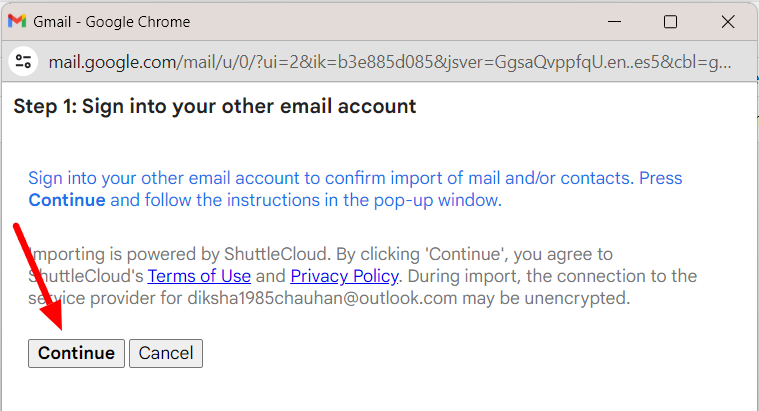
At this point, Gmail will require you to sign in to the Outlook account. So sign into your Outlook account and click ‘Continue.’
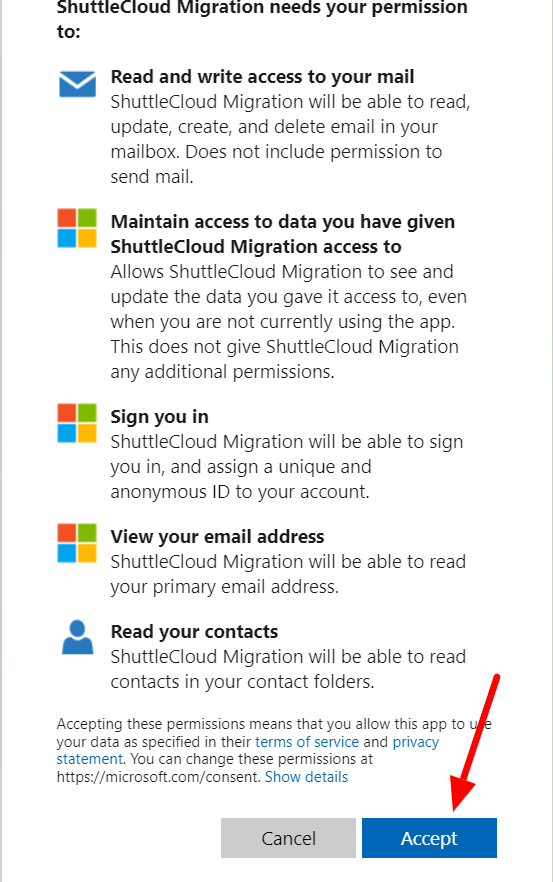
Give Outlook permission to proceed with the import by clicking ‘Accept.’
Step 7: Choose desired import option
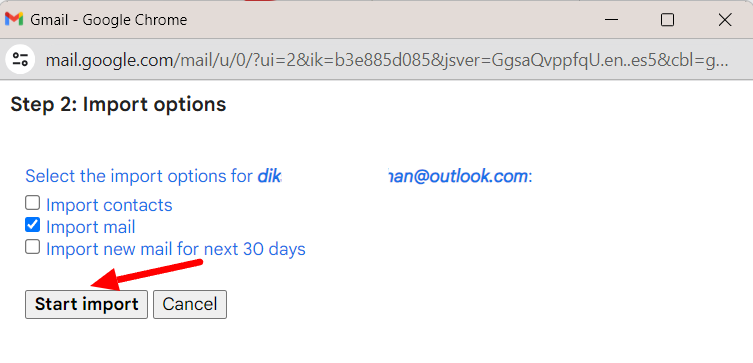
Gmail allows you to import emails and contacts. Select your preferences in the next window and click ‘Start import.’ While you have the option here, you can also import contacts separately. Learn how to import contacts to Gmail from CSV.
Step 8: Wait until Gmail is finished
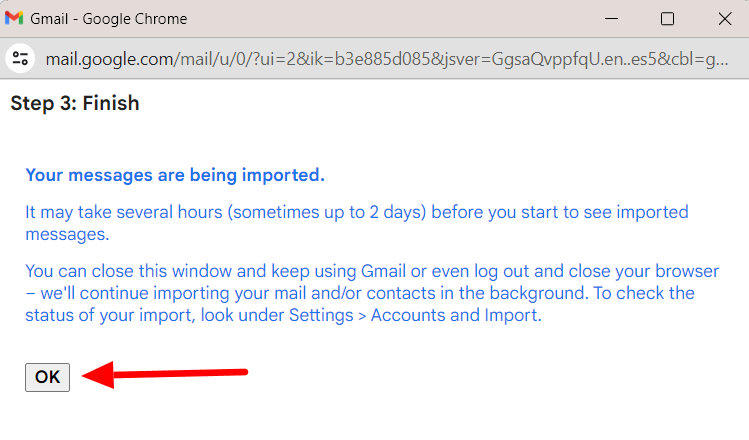
With that, you’re done, but the process may take some time. Gmail mentions that it can take up to 2 days. Click ‘OK’ and continue using Gmail.

When the import is complete, the emails from Outlook will show up in the Gmail inbox with a label containing the Outlook email address so you can tell imported emails from the rest.
Importing emails will get all your emails in the same place. Another way is to add your other accounts to Gmail so you can access them without opening other tabs. If you have another Gmail or even Yahoo account, why not add it to your primary Gmail account to make emailing easier? Learn how to add a Yahoo Account to Gmail and how to add a Gmail account to iPhone and Android.
The YAMM blog has tons of useful Gmail how-tos for you
If you found that helpful, you’ll love what the YAMM blog has to offer. YAMM is a Gmail add-on that lets you send mass messages through Gmail. YAMM blog is YAMM’s dedicated portal for all Gmail lovers who want to get the best out of Gmail.
It has tips. It has l tricks. It even has detailed Gmail feature tutorials so that you can use it with confidence and ease. If you feel like you could be doing more with Gmail, try the YAMM blog!