
How to Add Someone to Your Google Calendar
Updated 7 min read
Table of contents
Your Google Calendar is how you can stay organized in your day-to-day, but it can be a headache to coordinate with members of your team. Luckily, you can add someone to your Google Calendar to avoid this.
This article will show you how to add someone to your Google Calendar. We’ll walk you through the steps of sharing your calendar, adding people to your calendar, and more.
Let's get started!
How to share a Gmail Calendar with others
To share your Google Calendar with your team from a computer browser, follow these steps:
Step 1: Open Google Calendar
Open Google Calendar on your computer and sign in with your Google account. This walkthrough uses the desktop website. Find the "My calendars" section in the left sidebar.
Step 2: Find the Google calendar you want to share
Expand the “My Calendars” section by clicking the “Down” arrow.
Scroll down to find the calendar you want to share. Next to the calendar, click More (the three dots icon) and select "Settings and sharing."
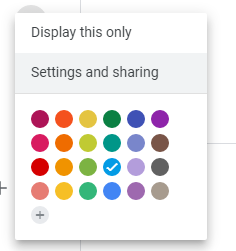
This will open the "Calendar Settings" page.
Step 3: Add someone to your Google Calendar
Open "Shared with" and select "Add people and groups." Enter the email address of the person or Google Group you want to share your calendar with.
Step 4: Check Google Calendar to access permission settings
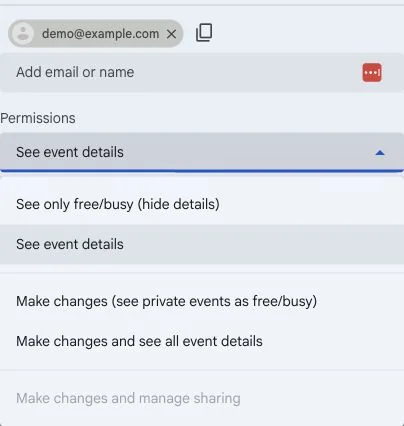
Use the permission selector to choose what the person or group can see and change. For work or school accounts, your administrator may restrict sharing or disable some permission choices. If a choice is unavailable, contact your administrator. The available permission levels are:
- See only free/busy (hide details): Shows availability without event details.
- See event details: Shows event information, including titles, locations, times, and descriptions.
- Make changes (see private events as free/busy): Allows editing non-private events, while private events remain uneditable and their details stay hidden.
- Make changes and see all event details: Allows event editing, including access to private event details, and shows who else has calendar access.
- Make changes and manage sharing: Adds control over sharing and full calendar management.
Go through these steps with each member of your team. If you already have a Google Group for your team, you can simply share your Gmail calendar with your Group’s email address.
Event visibility depends on calendar permissions. Marking an event private does not hide it from people with permission to edit and see its details. Broader public or organization access can also override a more limited individual permission.
Grant full access carefully. Someone with "Make changes and manage sharing" can change events, share the calendar with others, or permanently delete the calendar.
Step 5: Click "Send" to send a Google Calendar invite to your group
If you’re wondering how to send an invite on Google Calendar, then this is the step you want to look at. Once you've selected who can see your calendar and what information they can see, click the "Send" button to share your calendar. That's it! You've successfully shared your Google Calendar with your team.
How do members receive invitations to see your calendar?
When you share your Google Calendar with team members, they'll receive an email notification about the calendar. The email includes a link to the calendar, as well as information about what they can do with it.
Once they click on the link in the email, they'll be taken to the calendar page. From here, they can choose to add the calendar to their own Google Calendar account.
If you shared your calendar with them, they’ll be able to subscribe to it. Otherwise, they’ll have to request access to it.
How to share your Gmail Calendar ID with someone
A calendar ID is a unique identifier for your calendar. You can send it to help someone identify the right calendar, but it does not grant access or bypass your sharing permissions. Share the calendar with the person first, or have them request access where available.
Step 1: Find a shared Google calendar
Go back to the "My calendars" section and scroll down to find the shared calendar you want to share. Next to the calendar, click the three dots icon and select "Settings and sharing." This will open the "Calendar Settings" page.
Step 2: Find the shared Google calendar ID
On the "Settings and sharing" page, select "Integrate calendar." The "Calendar ID" field contains your calendar’s identifier.
Step 3: Copy and share Google calendar ID
Copy the calendar ID if the recipient needs to identify the calendar. To add the shared calendar, the recipient can use the link in your sharing invitation. For someone’s primary calendar, they can also request access from the desktop website:
- Subscribe to the calendar: Next to "Other calendars," click the plus button and choose "Subscribe to calendar."
- Find the calendar: Enter the owner’s email address in "Add calendar" or choose a calendar from the list. If it has not been shared with you, the owner receives an access request.
An already shared calendar appears under "Other calendars." If access is required, the owner must approve the request first. Knowing the calendar ID alone is not enough.
How to fix common issues related to Google Calendar sharing with a group
If the recipient of your calendar invite can't find the calendar or isn't sure what to do with the invite, there are a few things you can try:
Send the invitation to the right email address
Make sure that you're sending the invite to the correct email address. You can check this by opening the invite and looking at the "To" field. If you see an incorrect email address, try resending the invite to the correct address.
Ensure that the recipient clicks the link
The calendar invite will contain a link to the shared calendar. The recipient needs to click this link to add the calendar to their own Google Calendar account. They should check their spam folder if they can't find the invite in their inbox.
Remove and add someone to the Google Calendar again
If the recipient still can't see the calendar, try removing them from the list of people who can see the calendar and then adding them back.
Open the calendar’s "Settings and sharing" page and go to "Shared with." Remove the person, then select "Add people and groups," enter their email address, choose their permission, and send a new invitation.
Ask the account's admin to check settings for sharing your Gmail Calendar
If you use Google Calendar through work, school, or another organization, your administrator controls the sharing options available to you. A policy can limit access for people outside the organization, disable particular permission levels, or turn off sharing. Contact your administrator if you cannot select the access you need.
Congrats! You now know how to share your Google Calendar with others
With these steps, you now know how to add someone to your Google Calendar. You should now be able to successfully share your Google Calendar with others and coordinate your schedule easily. If you’re looking to get more out of your calendar events, you can even try integrating your calendar with spreadsheets.
Want to become an expert on your Google Workspace and Gmail? The YAMM blog has many other guides to help you on your journey!