
How to Send a Calendar Invite in Gmail
5 min read

Table of contents
Google Calendar is an invaluable tool in today’s work scenario. It helps to organize events, appointments, and meetings, reduces the risk of double-booking, and allows individuals to access their calendars from any device.
Did you know that you can send Google Calendar invites in Gmail? Sending calendar invites over email can help save time and energy in organizing schedules because you won’t need to worry about inviting each attendee individually.
In this post, we’ll show you how to send Google Calendar invites in Gmail!
How to send a Google Calendar invite in Gmail
Step 1: Open up Google Calendar
Navigate to Google Calendar to access your digital calendar. If you are in your Gmail inbox, you can also click the Calendar shortcut button on the top right corner.

This will open up Google Calendar in the sidebar. Click the “Open in a new window” button to open Google Calendar in an expanded view in a new window.

Step 2: Create a new event
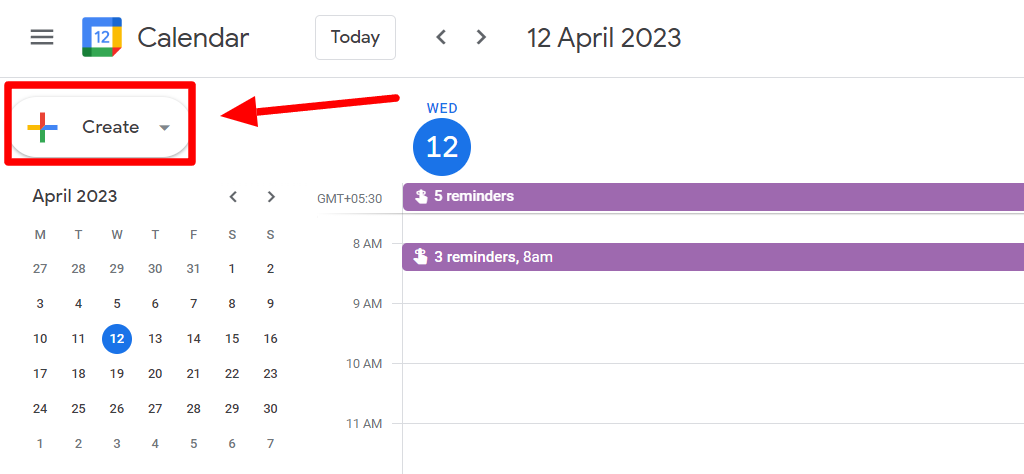
After reaching your Google Calendar, click the “Create” button and select “Event” to create a new event.
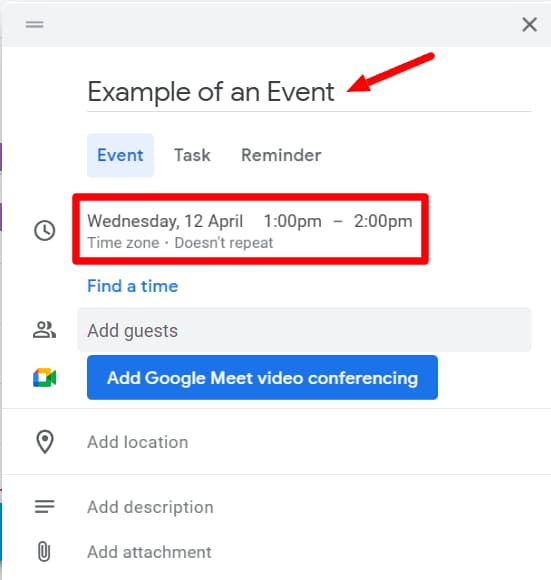
A new window will open where you’ll be prompted to fill in the details of your event. You can start by giving your event invite an appropriate title, and then you can proceed to fill in the date and time for your event.
Step 3: Add the guests you’d like to invite
Now, you’ll need to add guests to the event. If you’d like others on your team to view your calendar beforehand, you can follow this tutorial.
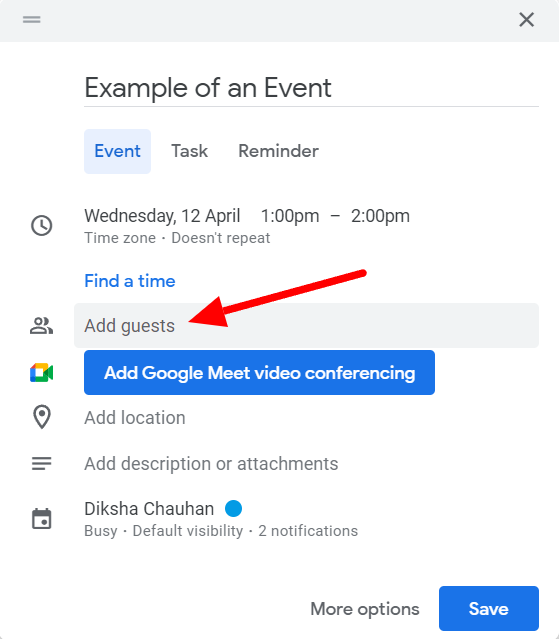
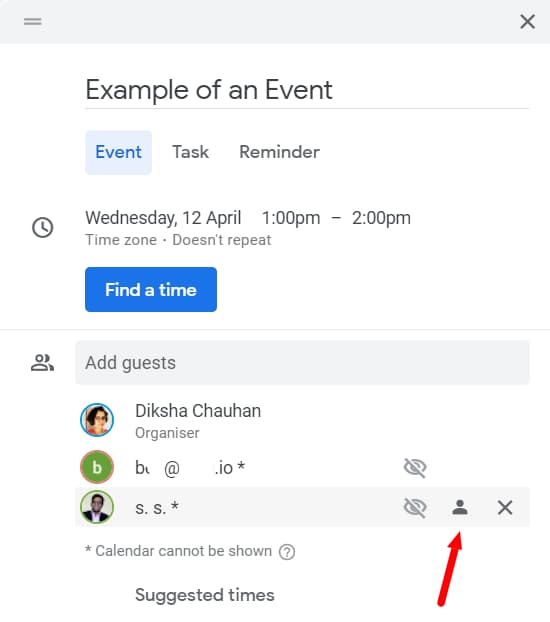
To add guests and send an invite via Gmail, you can start filling in the email addresses in the “Add guest” field. In fact, Google auto-complete will help you by making suggestions once you start typing.
As you select email addresses or names, they’ll get added to the list of guests with the organizer’s name on top.
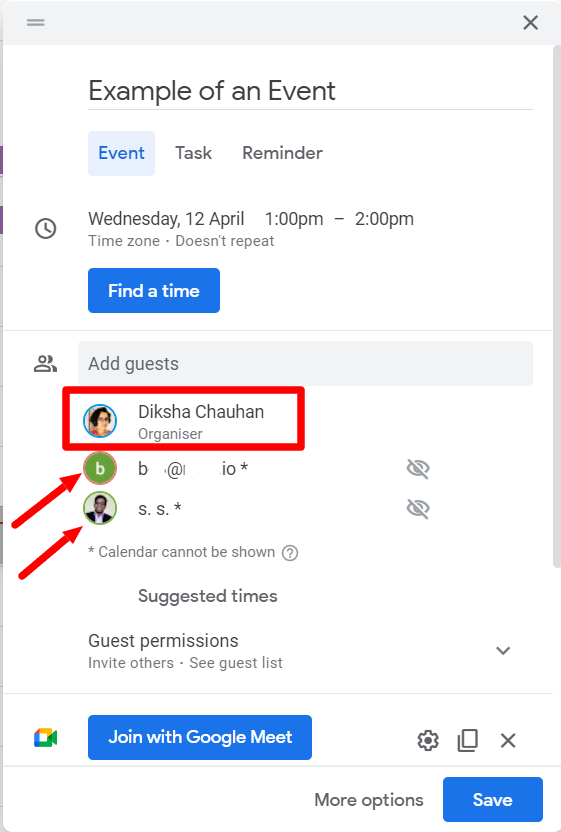
If needed, you can make guests optional by clicking the “Make optional” button next to their names or email addresses. Optional guests receive the invite for an event, but their presence isn’t essential for a meeting or event.
Step 4: Change guest permissions
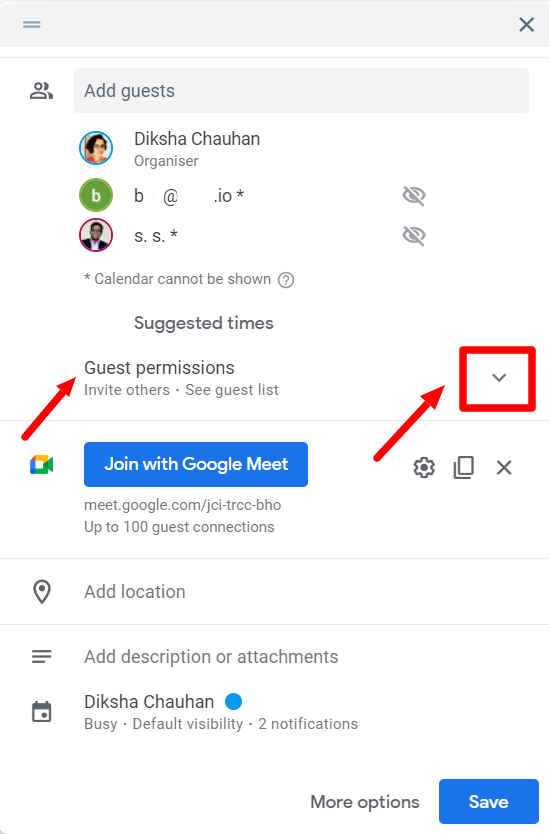
The next thing you should look at is guest permissions. Click on the down arrow button to open the guest permissions.
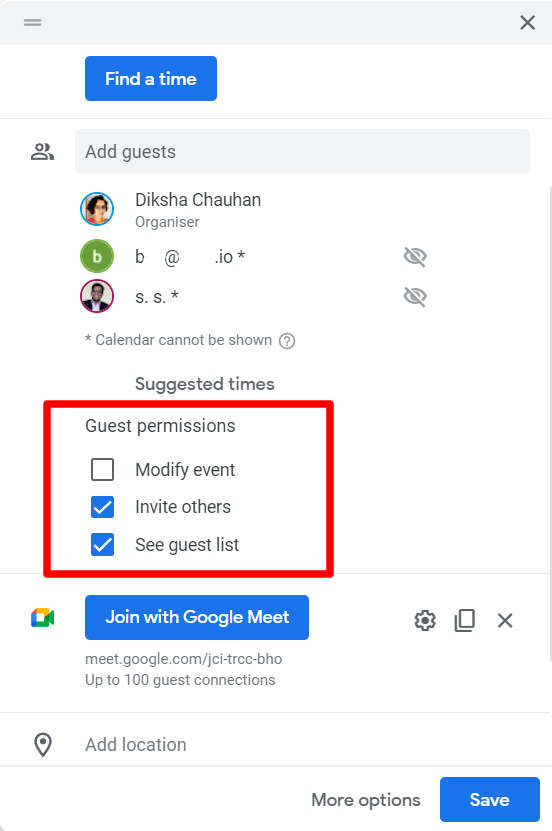
You can give your guests permission to modify the event, invite others, or see the guest list as per your needs.
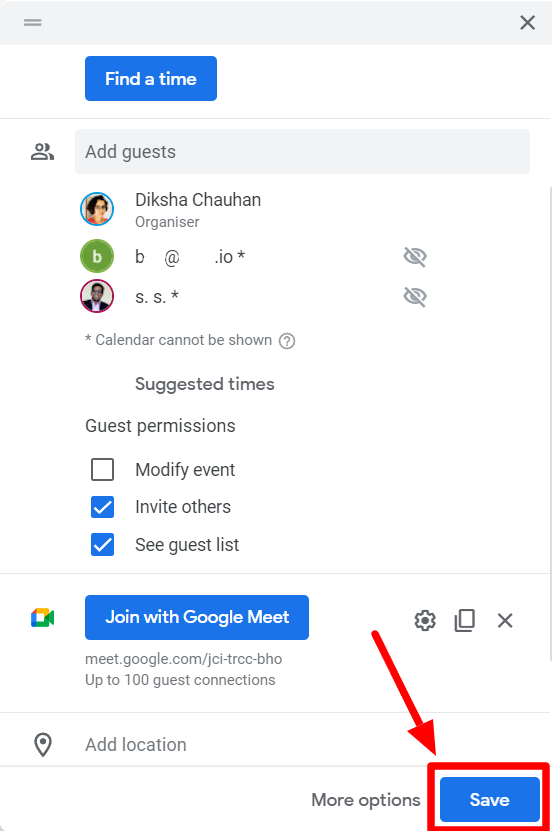
Step 5: Hit “Save”
When you’re done adding all your guests and setting up the guest permissions, click “Save” to create your event.
Step 6: Click “Send” in the invitation confirmation window
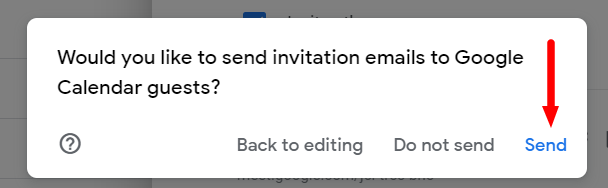
When you click Save, Google Calendar will ask if you want to send invitation emails to your guests. Click “Send,” and you’re done.
Step 7: Wait for guests to confirm
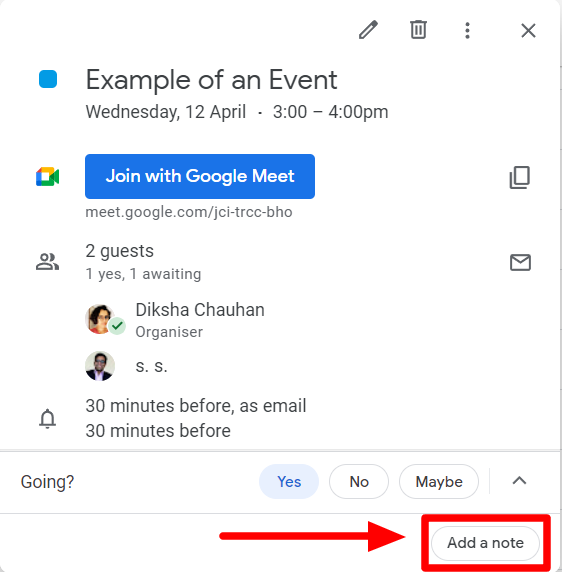
When you send a calendar invite to a guest, they can confirm whether or not they’ll be attending the event. As the organizer, your presence is confirmed by default.
You’ll receive an email notification when guests confirm they’ll attend your event. To personalize your invite, you can click “Add a note.”
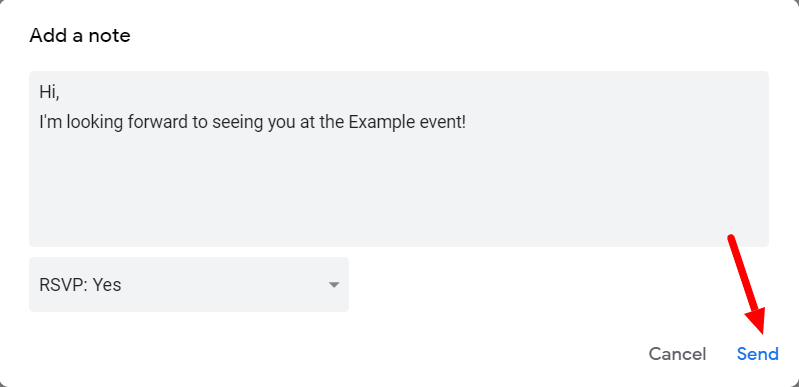
Add the note and click “Send.” You only have to wait for your guests to confirm their presence from this point on.
If you want your Google Calendar connected to a Google Sheet, such as a contact list, you can find out how to use the Calendar API and Google Apps Script to do this.
Other useful tips for Google Calendar invites
Knowing how to create an event and send calendar invites will help your professional work, but you can elevate your experience even higher by knowing other features associated with using Google Calendar.
How to add other guests to an existing calendar event
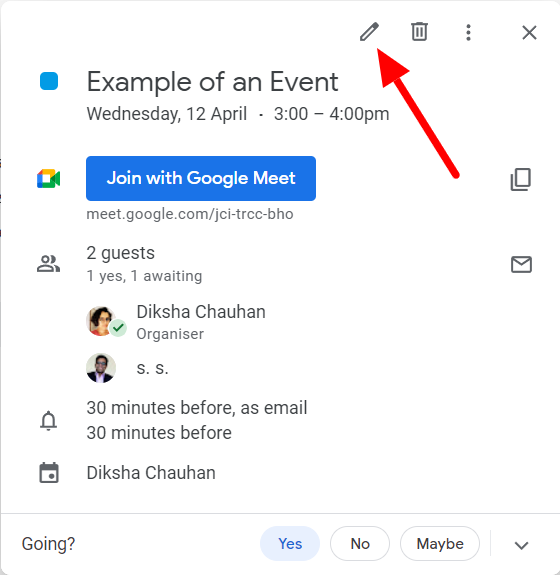
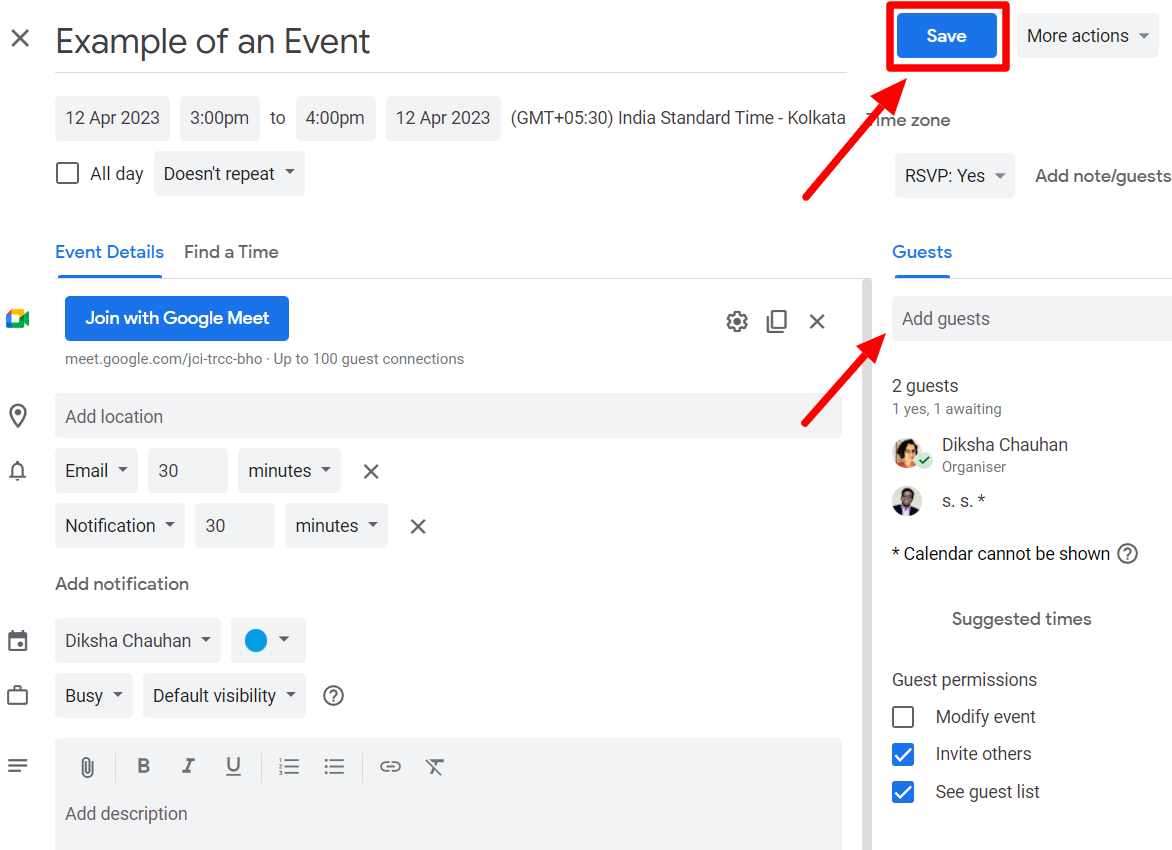
If you have an already created calendar event and want to add guests, you can do that easily, too. First, go to your Google Calendar and open the event. Then, click the “Edit event” button at the top.
This will open up another window. Here, you’ll find event details on the left and the guests on the right. Add more people to the list with their names or email addresses in the “Add guest” field. After you’re done, don’t forget to click “Save.”
How to cancel a calendar invite
If you want to cancel an event, you only need to delete it from your Google Calendar. All you need to do for this is open the event and click the “Delete” button on the top.
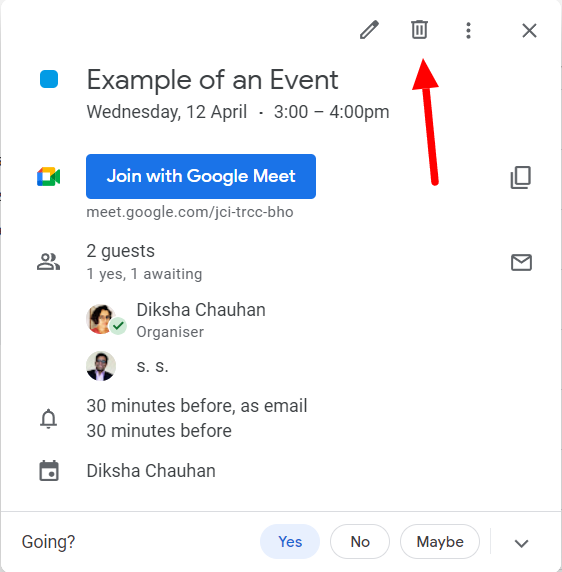
This will delete the event from your and your guests’ calendars too. Learn more about deleting events from your Google Calendar.
Learn everything you can do on Google Workspace with the YAMM blog
So, there you have it!
Now that you know how to send a calendar invite in Gmail, you can collaborate with colleagues and easily stay on top of meetings. Specifically, you can create a new event, set the date and time, and add guests. Google Calendar will allow you to send invites by email automatically. Easy as that!
The truth is that the entire Google Workspace is designed intuitively for ease. Knowing the key features of major platforms like Gmail can boost your efficiency and productivity. If you want to learn what else you can do in Gmail, check out the YAMM blog.